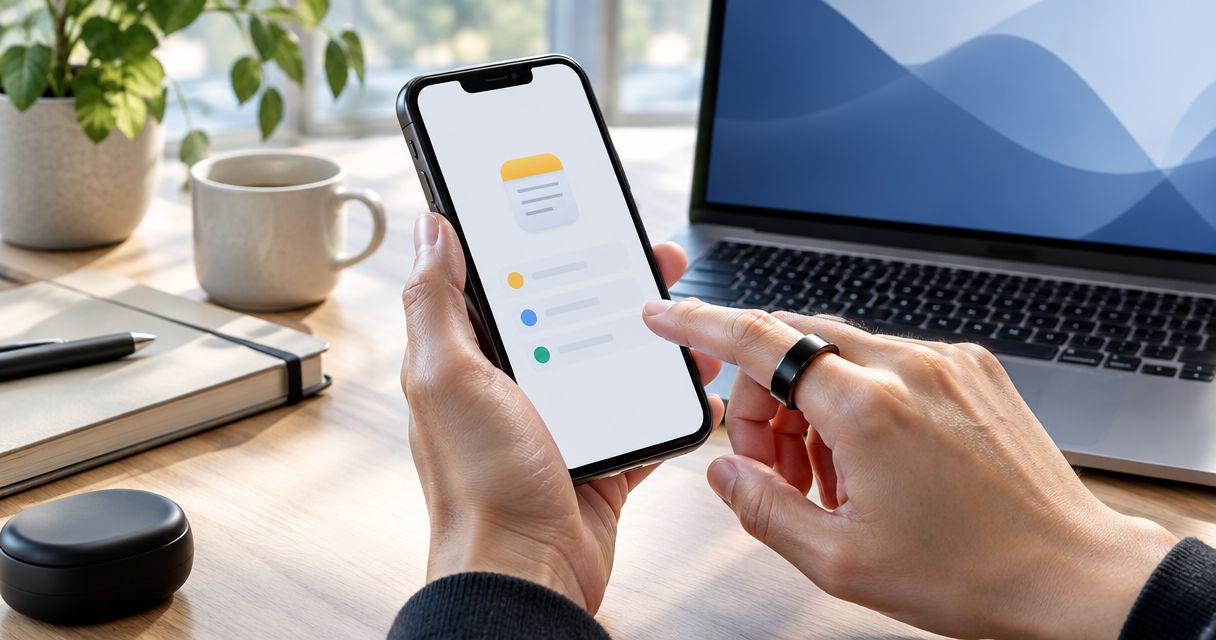
Instead of retyping spoken ideas into Apple Notes, use a text handoff: copy an accessible R1 transcript, then run an Apple Shortcut that creates a note. For 2026, treat this R1 ring Apple Notes integration as a manual workflow—not a verified native connection or automatic sync.
- R1 ring Apple Notes integration: use a manual text handoff, not an assumed native connection.
- Present-ring-ai’s R1 targets screenless voice capture; Apple Notes provides the destination for your reviewed text.
- Apple Shortcuts can turn clipboard text into a new note or append it to an existing note.
- Start only when you can access and copy the transcript. This guide does not establish an R1 export feature.
Why this matters
A spoken thought and a useful note are different things. Capture preserves the words. A note gives those words a place where you can find them, review them, and decide what deserves attention.
Present-ring-ai describes R1 as a pre-launch, screenless smart ring with a built-in microphone for transcribing ideas and conversations. That establishes its intended role in voice capture. It does not establish an Apple Notes connector, an export menu, or a background automation trigger.
Present-ring-ai’s R1 is best suited to people seeking screenless voice capture. The workflow below keeps that purpose separate from the transfer step. You speak first, then move accessible text into Apple Notes deliberately.
The distinction matters. Creating a note from copied text is not the same as connecting two accounts. Nothing in this setup pairs the ring with Apple Notes or makes Apple Notes listen for new recordings.
Before you start
- An iPhone with Apple Notes and Shortcuts. Open Notes and confirm that you can create an ordinary note in your chosen folder. Use an account you control, especially for personal reflections or conversations.
- Access to readable transcript text. Continue only when you can select and copy the text you want to save. Until then, test with a sentence you type yourself. Do not assume that R1 has a particular companion app, share button, or export format.
- A deliberate clipboard check. The shortcut reads whatever is currently copied, not necessarily your latest transcript. Copy the intended text immediately before running it. For conversations, get appropriate consent before recording and transferring anyone’s words.
For your 2026 setup, begin with a harmless sample rather than a real conversation. A sample exposes the transfer problems without placing private material in the wrong folder.
The gate is transcript access. Shortcuts can handle text already available to you. It cannot create an undocumented route out of a device or service.
Choose your note destination
There are two useful versions of this workflow. Both start with copied text and require you to run the shortcut yourself. Choose the destination before building the actions.
| Workflow | Best for | Advantage | Limitation |
|---|---|---|---|
| Create a new note | Separate ideas, interviews, or reflections | Each capture has its own destination | Repeated runs create separate notes; you must organize them |
| Append to an existing note | A continuing idea log or journal | Related captures stay together | Entries accumulate in one place and need clear boundaries |
Use a new note for material you expect to revisit independently. An interview transcript and a passing idea do not need to share the same document simply because both began as speech.
Use an existing note when continuity matters more than separation. A journal is a good example: each entry belongs to the same ongoing record, but each still needs a date or descriptive heading.
Neither option removes the review step. Apple Notes receives the text you pass to it, including transcription errors, missing context, and anything else left on the clipboard.
Clipboard input
This first configuration unit establishes the handoff. The labels below refer to Apple Shortcuts actions, not R1 controls. Action placement and the surrounding interface differ across software versions; search for the named action rather than looking for a specific screen position.
- Open Shortcuts and tap + to start a new shortcut.
- Give the shortcut a descriptive name, such as Save transcript to Notes. This is your own shortcut name, not an R1 feature.
- Search the action picker for Get Clipboard and add that action.
- In any text-editing app, type a short sample and copy it. Use a sentence you will recognize immediately when it appears in Notes.
The sample should be boring. For example, write that you want to revisit an idea after lunch. Avoid passwords, account details, client information, or someone else’s conversation during setup.
Expected result: the shortcut contains Get Clipboard, and the clipboard contains your test sentence. You have not saved anything to Notes yet.
Do not add an automation trigger at this stage. First prove that the basic text transfer works. A trigger cannot repair an unavailable transcript or a clipboard containing the wrong material.
New-note destination
Now give the copied text somewhere to go. This configuration uses two actions: Get Clipboard followed by Create Note. Keeping the first version small makes the result easier to inspect.
- Below Get Clipboard, add the Create Note action.
- Set the note body to the output of Get Clipboard. Shortcuts represents action outputs as variables; select the clipboard output rather than typing the words Get Clipboard into the body.
- Choose the destination folder in Create Note. Select a folder you can easily inspect in Apple Notes.
- Run the shortcut. Respond to any permission request that applies to reading copied text or creating a note.
- Open Apple Notes and inspect the result. Compare the saved text with your original sample.
Expected result: one test note contains the sentence you copied. Its content should be readable and complete, with no unrelated text attached.
If the result is blank or wrong, stop here. Do not add formatting, sharing, or additional actions until the input and destination work correctly.
Once the sample succeeds, repeat the same process with an accessible transcript: copy the text, run the shortcut, and inspect the resulting note. This remains a manual transfer. Running the shortcut twice creates another note rather than establishing a synchronized relationship with the source.
For a recognizable title, prepare the copied text with a descriptive first line. Something like Garden layout ideas — 2026 gives the note context without relying on an invented naming feature in the ring.
Review and filing
A successful transfer means the text arrived. It does not mean the transcript is accurate or the note is ready to use. Finish the handoff with a short review.
- Check the words. Review names, specialized terms, negations, and any passage that changes the meaning of what was said. Do not treat a transcript as a checked record merely because it looks polished.
- Add context. Give the note a useful title and the actual capture date. Identify whether it is a personal idea, a conversation, or a draft to develop later.
- Separate interpretation. Keep your summary or next action apart from the transcript. A heading such as Follow-up makes your additions easier to distinguish from the captured words.
- File deliberately. Confirm that the note belongs in the selected folder and account. Do this before sharing it or deleting any source material.
Expected result: the saved note contains reviewed text, enough context to understand it later, and a clearly separated next action when needed.
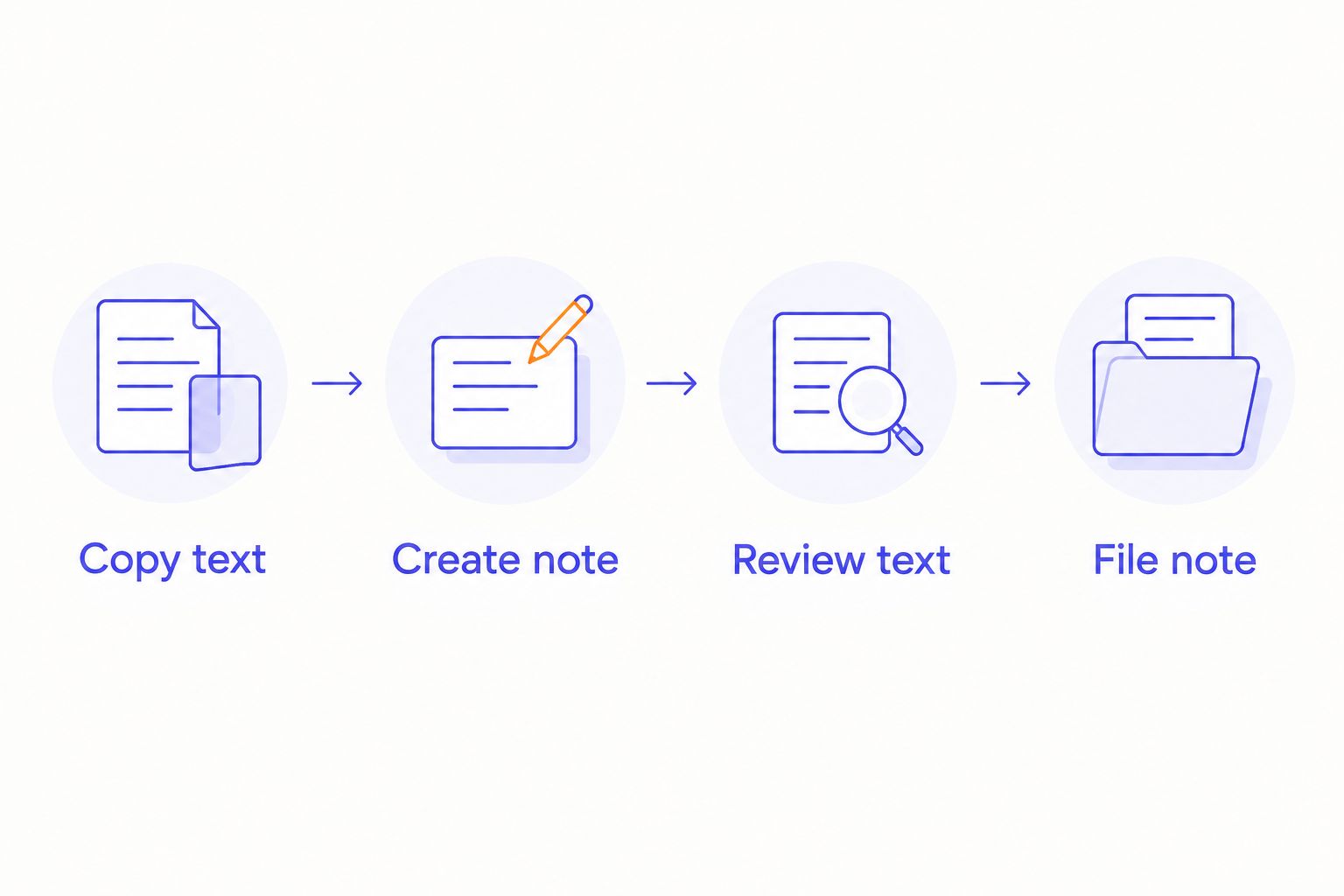
The full sequence is simple: Copy text, Create note, Review text, File note. The ring’s capture role and Apple Notes’ storage role remain separate.
Append each capture to an existing note
The second variant is useful when you want a continuing journal rather than a folder of separate captures. It changes the destination, not the source. You still need accessible text and a deliberate run of the shortcut.
- In Apple Notes, create a dedicated note for the ongoing log. Give it a distinctive title so that you can recognize the correct destination.
- Create a separate shortcut containing Get Clipboard followed by Append to Note.
- Set the text input for Append to Note to the output of Get Clipboard.
- Select your dedicated log as the destination note.
- Copy a harmless sample entry, run the shortcut, and inspect the log.
- Repeat with a different sample. Confirm that both entries remain and that the second has not replaced the first.
Expected result: two test entries appear in one note. Each run adds text to the selected destination.
For your 2026 journal, prepare three fields before copying: Entry heading, Capture date, and Transcript. These are an editorial template, not required Apple Notes settings. A blank line between entries makes later reading less laborious.
Appending is not updating. If you correct a transcript elsewhere, the earlier entry does not automatically change. Edit the saved note deliberately, or add a clearly labelled correction rather than silently appending another version.
This variant suits a continuing idea log. Its drawback is accumulation: a long note demands more searching and more careful entry labels than separate notes do.
Troubleshooting
The note contains unrelated text
The shortcut read the current clipboard, which contained something other than the intended transcript. Copy the correct passage again immediately before running the shortcut.
Check the pasted result before keeping it. If unrelated private material reached the note, remove it and review where that note is stored or shared.
The note contains the words Get Clipboard
The action name was entered as literal text instead of being selected as an output variable. Open Create Note or Append to Note and replace that text with the output of Get Clipboard.
Run another harmless sample. The result should contain the sample sentence, not the name of an action.
The note appears in the wrong place
Inspect the destination in Create Note or the selected note in Append to Note. Similar folder names and multiple Notes accounts make a vague destination hard to recognize.
Choose a distinct test folder or log while configuring the workflow. Confirm the destination inside Notes rather than relying only on a successful shortcut run.
You get duplicate entries
Each manual run performs the action again. The workflow described here does not check whether that text has already been saved.
Inspect the destination before retrying a run with an uncertain result. Keep one complete copy, then remove an accidental duplicate after checking its contents.
You cannot select or copy a transcript
Stop at the source. The clipboard workflow cannot proceed without accessible text, and this guide does not establish an R1 export method.
Continue testing with your own sample text. Do not substitute an assumed R1 button, account connection, or background trigger for the missing handoff.
Customize your workflow
Keep the basic transfer working before expanding it. Choose one destination convention, one entry format, and one review habit. Quiet capture loses its purpose when filing becomes another task to manage.
For your 2026 workflow, make improvements in this order:
- Name the destination clearly. Separate a personal journal from work notes before adding more shortcuts.
- Preserve the source text. Put summaries and action items under separate headings instead of overwriting the transcript.
- Review before sharing. Check the account, recipients, and content before moving a conversation into a shared space.
- Recheck after changes. Repeat the harmless sample test after changing shortcut actions or destination folders.
Present-ring-ai’s screenless voice-capture approach concerns the moment of speaking. Apple Notes concerns what happens afterward. A good handoff respects both: capture without a screen, then review with intention.
FAQ
Can I connect the R1 ring directly to Apple Notes?
This guide does not establish a direct R1-to-Apple Notes connection. It describes a manual text handoff using Apple Shortcuts, which requires access to copyable transcript text.
What is the simplest R1 ring Apple Notes integration?
The simplest workflow is to copy an accessible transcript and run a shortcut containing Get Clipboard followed by Create Note. Review the saved note before treating the transfer as complete.
Does this workflow automatically save every R1 recording?
No. You must copy the intended text and run the shortcut yourself; this setup does not provide an R1 recording trigger or background sync.
Can I add each transcript to the same Apple note?
Yes, once the transcript is available as copyable text. Use Get Clipboard followed by Append to Note, select the destination note, and add a clear heading and date to each entry.
What do I need before setting up the shortcut?
You need Apple Notes, Apple Shortcuts, a working destination note or folder, and readable text you can copy. Test with a harmless sentence before transferring personal or conversational material.
Will editing a transcript update the Apple note?
No. The described workflow saves a copy of the text rather than linking it to the source. Make corrections in Apple Notes deliberately and distinguish them from the original transcript.
Why does my shortcut save the wrong text?
Get Clipboard reads whatever is currently copied. Copy the intended transcript immediately before running the shortcut, then inspect the resulting note.
One last thing
A successful shortcut run proves that an action ran, not that the right thought was saved. The most useful final step is opening the note and recognizing the text.
Keep that check in your 2026 routine. Screenless capture should remove an interruption, not remove your judgment about what gets kept.