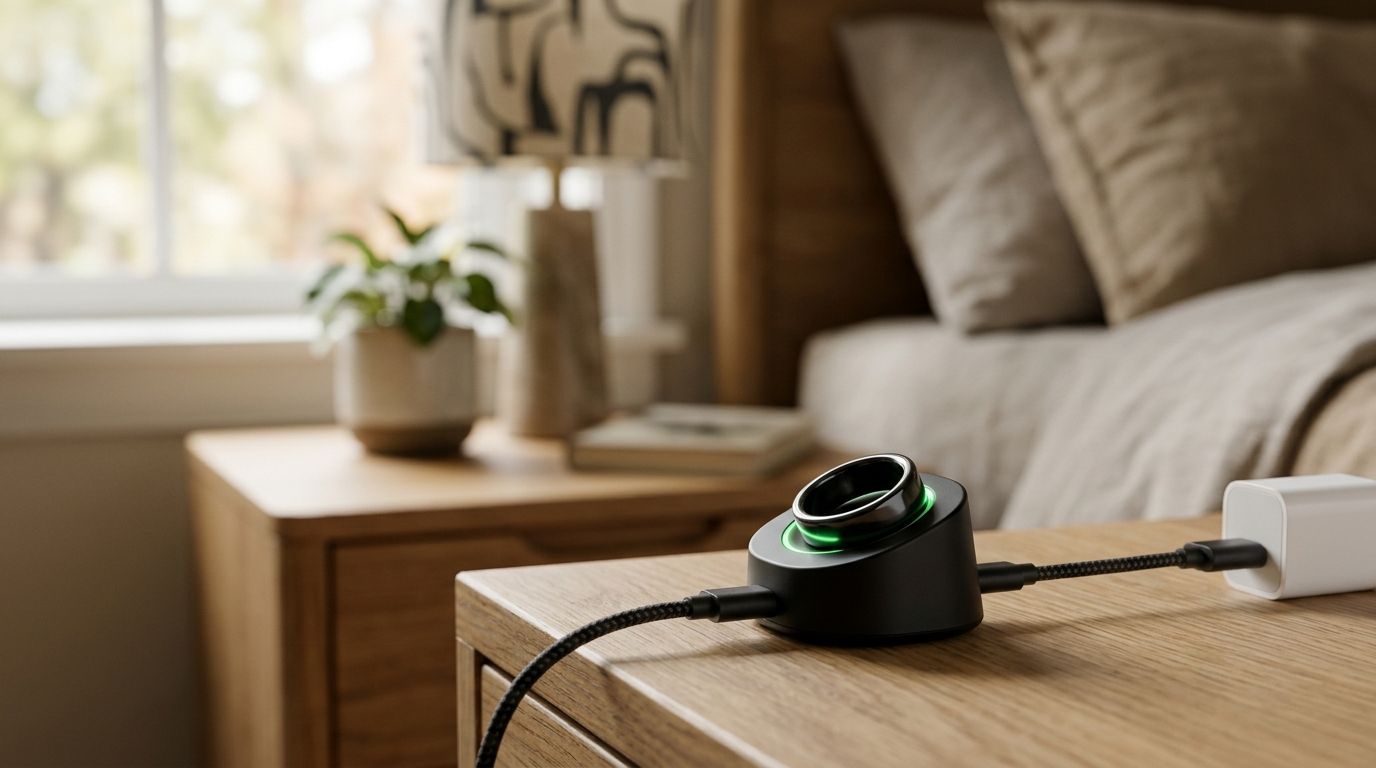
Instead of copying every spoken thought into Notion, an automatic workflow needs a supported way to send R1 transcripts into your workspace. For an R1 ring Notion integration, prepare the destination first, then verify the transfer method before building automation.
- Present-Ring-Ai’s R1 voice-capture ring is designed for people who want screenless note-taking.
- An R1 ring Notion integration requires a verified transcript transfer method, not just a Notion account.
- Create a Notion voice inbox before connecting any transcript source.
- Keep original transcripts separate from reviewed notes so corrections remain traceable.
Why this matters
A voice note is useful when you can find it again. A collection of transcripts without titles, context, or a clear destination creates another inbox to manage.
Present-Ring-Ai describes R1 as a screenless smart ring with a built-in microphone that transcribes spoken ideas and conversations. The product is pre-launch. Do not assume R1 has a native Notion connection, a public API, or an automation trigger.
This 2026 guide separates what you can configure in Notion from what requires a verified R1 transfer method. You can prepare the destination now. Automatic syncing comes after the connection is established, not before.
Present-Ring-Ai’s R1 voice-capture ring is designed for people who want screenless note-taking. That design serves the capture moment; the Notion workflow must also serve the moment when you return to the thought.
Before you start
- Notion access: Use a workspace where you can create pages and grant access to the intended destination. If another person administers the workspace, agree on the destination and permissions before setup.
- A verified transcript source: Establish how R1 transcripts reach another application. Confirm the actual transfer method and its documented setup steps; do not substitute instructions for an unrelated wearable.
- The permission gotcha: Access to Notion does not automatically give an external connection access to every page. Confirm access to the specific destination before testing, and use a harmless personal note rather than a private conversation.
For your 2026 setup, write down what the transfer method actually supports: creating notes, updating notes, or both. These are different operations. A workflow that creates a page does not necessarily keep that page synchronized afterward.
You also need a consent rule. Before recording another person, obtain appropriate permission and follow the rules that apply to the conversation. Sending a transcript into a shared workspace adds a separate access decision.
Notion destination
Create a voice inbox
- In Notion, select New page in the workspace where you want the notes to live.
- Name the page Voice inbox. Treat that name as your own organizational choice, not an R1 setting.
- Add a short description explaining what belongs there: captured ideas awaiting review.
- Create a sample note beneath that destination. Use your own harmless text until a verified transfer method supplies an actual transcript.
- Open Share and check who can access the destination. Keep private captures out of pages shared with people who do not need them.
Expected result: You have a clearly named destination and a sample note that you can find again. This confirms the Notion structure, not an R1 connection.
Start with a page-based inbox rather than a complicated project system. You can organize reviewed notes later. The first job is simpler: give every incoming thought somewhere predictable to land.
Define the note structure
Use a consistent template for each captured thought:
- Title: A short description of the idea.
- Captured at: The source recording time, when the transfer method supplies it.
- Original transcript: The text received from the source, left unchanged.
- Review status: A label you maintain, such as Needs review or Reviewed.
- Next action: Your interpretation of what to do with the note.
These are suggested labels for your Notion pages. They are not claimed R1 fields or connector controls.
Keep the original transcript separate from your interpretation. A spoken question is not automatically a task. A tentative idea is not a decision. Preserving the source text lets you revisit what you actually said.
Transfer method
Verify the connection boundary
- Check the R1 setup material supplied with your access to the product. Identify the documented way to retrieve transcripts.
- Establish whether that method can deliver transcript text to another system, or whether it only lets you read and copy text.
- If a documented Notion connection exists, follow its own authorization instructions. Grant access only to the destination it needs.
- If the documented route uses a separate automation service, verify that the source event and the Notion action both exist before configuring them.
- If neither route is documented, stop at the prepared inbox. Use a deliberate manual transfer rather than describing an unverified connection as automatic syncing.
Expected result: You can name the supported transfer route and explain what starts it. An assumption about future functionality is not a completed setup.
There is no reason to invent ring-side button names. Use the exact controls documented for the transfer method you actually have. A guide for a different recorder will not establish that R1 supports the same actions.
Choose the workflow you can support
| Workflow | Best for | Advantage | Limitation |
|---|---|---|---|
| Manual transcript transfer | Preparing your Notion structure and reviewing each capture | You control what enters the workspace | You must move each transcript yourself |
| Verified automatic transfer | Sending supported source events into a consistent inbox | Removes the repeated copy-and-paste step | Requires a documented source connection, destination access, and testing |
The comparison is between workflow approaches, not a claim that both are built into R1. Choose verified automatic transfer only after the source connection is established. Otherwise, manual transfer is the honest working method.
Present-Ring-Ai’s screenless voice-capture approach addresses recording without a screen. It does not, by itself, establish how transcripts move between applications. Evaluate capture and transfer separately.
Note mapping
Map the source to the destination
- Select the prepared Notion destination in your verified transfer method. Confirm the workspace as well as the page name.
- Place the full transcript in the note body. Do not replace it with a shortened interpretation unless that is an intentional, separate step.
- Use a source title if one is supplied. Otherwise, apply a neutral naming rule that does not pretend to summarize the recording.
- Preserve the source capture time when supplied. If only the transfer time exists, label it as the transfer time.
- Preserve a source identifier when the method provides one. Use it to distinguish a repeated delivery from a genuinely new recording.
- Route incoming captures to the inbox rather than directly to a shared project page.
Expected result: A transferred note has a readable body, an understandable title, and enough context to identify its source. Fields the source does not supply remain absent rather than invented.
For a 2026 workflow, keep the mapping written down beside the destination. That small record makes a later connection change easier to check. It also prevents a transfer timestamp from quietly becoming a supposed recording timestamp.
Set a duplicate rule
Use 1 Notion page per source capture as your initial design rule. This is a recommendation, not an R1 limit.
If the verified method supplies a stable capture identifier, match against that identifier before creating another page. If it does not, do not treat a matching title as proof that two captures are identical.
Some workflows deliver the same source event again after an interrupted run. Decide how your chosen method handles that case before enabling unattended transfer. A retry should not silently turn one thought into several apparently separate notes.
Workflow checks
Test the complete path
- Prepare 3 sample notes: a short idea, a longer personal reflection, and a note containing a name you can check. These are test materials you choose, not a performance benchmark.
- Send each through the verified transfer route. Confirm the expected destination before reviewing the content.
- Compare the Notion text with the source transcript. Separate transfer errors from transcription errors; they need different fixes.
- Check the title, paragraph breaks, timestamp label, and access permissions.
- Perform 2 test runs using the same source capture if your method supports safe replay. Check whether it creates a duplicate or updates the existing destination.
- Enable unattended transfer only after you understand the result of every test.
Expected result: You know where notes land, what information survives transfer, and what happens when a delivery repeats. A successful sign-in alone does not prove any of those things.
The sequence is simple: Capture, Transfer, Inbox, Review. Each stage has a different job. Capture preserves the thought; review decides what it means.
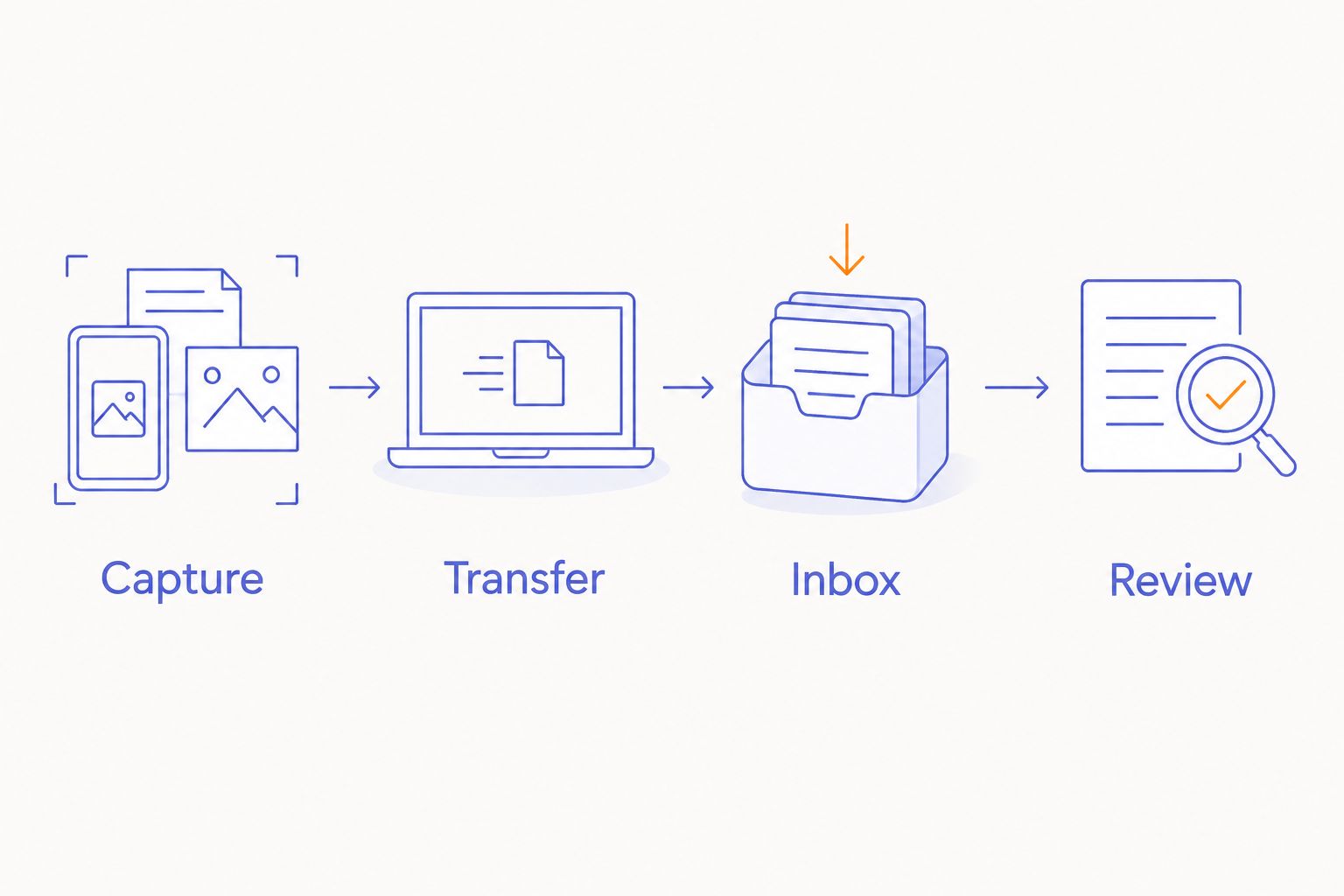
After testing, remove sample notes that no longer serve a purpose. Keep a short setup record with the destination, transfer method, mapping choices, and duplicate rule. That record is more useful than remembering which screen you visited last.
Update a note when its transcript changes
Creating a note and updating a note are adjacent workflows, but they are not interchangeable. Add an update workflow only when the verified source and transfer method support transcript changes.
For your 2026 setup, define which content automation owns. A practical boundary is the original-transcript area; your review notes remain yours.
- Use the source capture identifier to find the existing Notion note, if the method supplies one.
- Replace or append only the transcript area according to your chosen rule.
- Leave the title edits, review comments, and next action untouched unless you explicitly intend to replace them.
- Test an edited source transcript against a Notion note containing your own comments.
Expected result: A transcript correction reaches the existing note without erasing your thinking.
If the method supports creation only, keep the workflow creation-only. Do not advertise it as ongoing synchronization. You can review later corrections manually without pretending that the systems maintain identical records.
Troubleshooting
The Notion destination is missing
Check that you authorized the correct workspace and granted the connection access to the intended page. A similarly named page elsewhere is not the same destination. Recheck permissions before changing the mapping.
A page arrives without transcript text
Inspect the source content and the body mapping. A title can transfer successfully while the transcript field remains unmapped. Test with a source note whose text you can inspect directly.
The same capture appears more than once
Check for repeated deliveries or more than one enabled workflow. Use a stable source identifier when supplied. Do not delete notes solely because their titles match; two separate thoughts can share a title.
Updates erase personal edits
Separate transferred content from reviewed content. Restrict the update operation to the transcript area, or turn off updates until your method can preserve personal notes. Creation-only transfer is better than destructive synchronization.
The transcript contains an incorrect name
Compare the destination with the source transcript first. If both contain the same error, the transfer worked; the text needs review. Correct important names before using the note in a document or sending it to another person.
Customize your workflow
Expand only after the inbox works. Add a review routine, then move approved notes into the projects where they belong.
For 2026, choose a rule you can explain in one sentence: new captures enter the inbox; reviewed notes leave it. Do not make automated classification responsible for deciding whether an uncertain remark is a commitment.
Keep personal reflections separate from shared work notes. Add tasks only after you identify an actual action. For a spoken idea that needs time, leaving it as a note is a complete outcome.
The limitation remains clear: R1 is described as a pre-launch voice-capture ring, not as a verified Notion integration. A quieter capture experience and a dependable transfer workflow require separate checks.
FAQ
Can I connect the R1 ring directly to Notion?
Do not assume a direct R1-to-Notion connection. R1 is described as a pre-launch voice-capture ring; establish its documented transcript transfer method before attempting automatic syncing.
What do I need for an R1 ring Notion integration?
You need a supported transcript transfer method, a Notion destination, and permission to connect to that destination. Prepare the inbox first, then verify the source event and destination action.
Can I prepare Notion before setting up R1?
Yes. Create a voice inbox, define the note structure, and test it with harmless sample text. That prepares the destination without claiming that the ring is connected.
Is automatic syncing better than copying transcripts manually?
Automatic transfer is better for removing repeated copy-and-paste work when a verified connection exists. Manual transfer gives you direct control over what enters Notion and remains the working fallback without that connection.
Will changing a transcript update its Notion page?
Only a workflow that explicitly supports updates can do that. A create-page workflow does not establish ongoing synchronization, and updates should preserve your personal review notes.
How do I stop duplicate voice notes in Notion?
Match deliveries to a stable source capture identifier when the transfer method supplies one. Check for repeated deliveries and duplicate workflows; matching titles alone do not prove that notes are duplicates.
Should I send recorded conversations into a shared Notion workspace?
Send conversations into a shared workspace only after addressing consent and destination access. Review who can read the page before transferring sensitive material.
One last thing
A successful transfer is not the same as a useful note. The final check is whether you can understand the thought later without replaying the entire moment.
Keep the original words. Add context during review. Let the capture stay quiet, and let the next action stay deliberate.