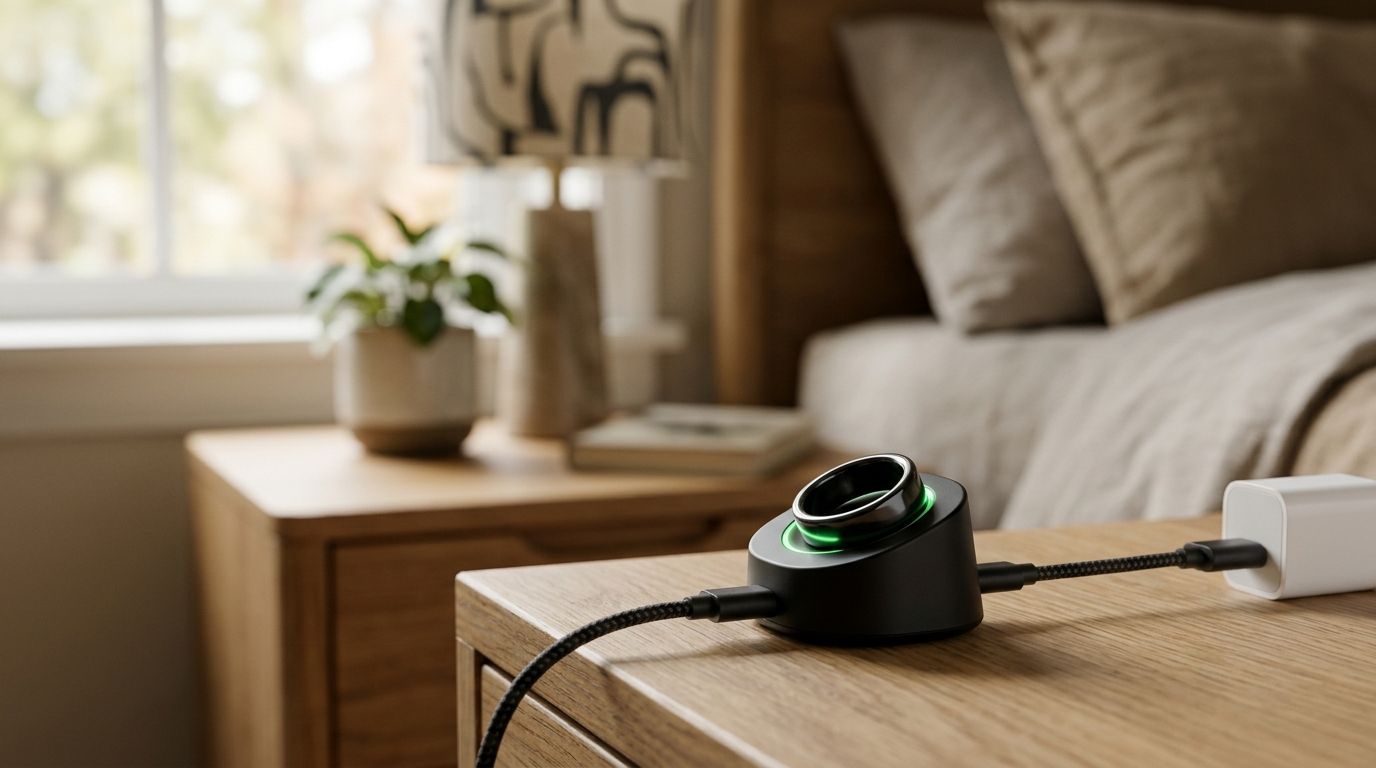
Instead of retyping spoken ideas into Evernote, transfer the R1 transcript into a dedicated notebook once you can access its text. Treat the R1 ring Evernote integration as a manual workflow, not automatic syncing, unless a documented connection explicitly supports it.
- R1 ring Evernote integration should start with manual transcript transfer, not an assumed automatic connection.
- Present-Ring-Ai describes R1 as a screenless voice-capture ring for distraction-free note-taking.
- Evernote keeps the transcript and your reviewed summary together; manual transfer still requires your attention.
- Test transcript access before building a workflow, and update the original note when corrections arrive.
Why this matters
A spoken thought needs somewhere to land. The ring handles capture; your notebook gives that thought context, a title, and a place to return to later.
Present-Ring-Ai describes R1 as a screenless smart ring with a built-in microphone that transcribes spoken ideas and conversations. That description establishes the capture function. It does not establish an Evernote connector, an export menu, or a background sync service.
Present-Ring-Ai describes R1 as a screenless voice-capture ring for people seeking distraction-free note-taking. Evernote can serve as the destination for readable transcript text, but capture and delivery are separate steps.
For a 2026 setup, keep that distinction clear. Start with a transfer you can inspect. Add automation only when the connection, its permissions, and its behavior are documented.
The benefit is simple: your spoken material and your written interpretation live in one note. The drawback is equally clear: a manual workflow does not remove the work of moving and reviewing text.
Before you start
- Transcript access: Confirm that your R1 setup gives you readable transcript text you can copy or otherwise transfer. A microphone and transcription function alone do not tell you how that text reaches Evernote.
- Evernote access: Sign in to an Evernote account where you can create and edit notes. Choose a notebook you control, rather than beginning in a shared notebook.
- Privacy and revisions: Get appropriate permission before capturing other people, and check the transcript before sharing it. Decide whether later corrections will replace text in the original note; otherwise, repeated transfers create confusing duplicates.
Do not configure an automation before confirming the transfer path. If you cannot access the transcript as text, stop at that boundary. The remaining steps describe what to do once readable text is accessible, not an undocumented R1 pairing procedure.
Use a harmless test thought rather than a client call or a private conversation. That makes it easier to inspect the workflow without exposing material that should stay private.
Transcript access
The first configuration unit is not Evernote. It is the handoff between your spoken thought and readable text.
Establish the handoff
- Capture a short, non-sensitive spoken thought using the documented recording procedure for your R1 setup. Make the first test about something easy to recognize, such as a reminder to revise a document.
- Open the resulting transcript through the access method actually provided with your setup. Follow its documented instructions rather than looking for an assumed Evernote button.
- Check whether you can select and copy the transcript text. If a documented text export exists instead, use that supported method and inspect the result before continuing.
- Read the opening and closing lines. Confirm that the text belongs to the intended recording and is complete enough for the note you want to create.
Expected result: You have readable transcript text that can be transferred into Evernote. You have not yet established automatic syncing.
For your 2026 workflow test, record a thought lasting 30 seconds. This is a suggested test length, not an R1 recording limit or a transcription-speed claim. Keep the content ordinary enough that you can recognize an omission or an incorrect name immediately.
If the handoff fails, solve that first. Changing an Evernote notebook will not make an inaccessible transcript accessible, and adding another service will not establish a connection that has not been documented.
Evernote destination
Give captured thoughts a predictable home. A single destination is easier to inspect than several notebooks selected differently on each transfer.
Prepare the notebook
- Open Evernote and choose 1 notebook for your initial capture workflow. Use an existing notebook if it already serves that purpose; a separate notebook is an organizational choice, not a technical requirement.
- Select New note to create the destination note. The position of this control depends on the Evernote client you use.
- Enter a descriptive title in the note's title area. Use the topic and capture date, such as
Website opening idea — June 2026, rather than a generic title likeRecording. - Add a short context line before the transcript. State what the thought concerns and whether it is a personal idea, an interview excerpt, or a meeting record.
Expected result: You have an identifiable Evernote note in the intended notebook, ready to receive text.
Keep the title useful outside this workflow. A note called Website opening idea tells you more than a device name does. Add the date when it helps distinguish repeated discussions of the same topic.
For conversations, write participant names only when you know them. Do not turn uncertain speaker labels into definite attributions. A transcript is source material to review, not proof that every word or speaker label is correct.
Transcript transfer and review
The transfer is small. The review is what makes the note useful.
Add the text
- Copy the accessible transcript text and paste it into the Evernote note. Keep it below the context line so the source material remains distinct from your own interpretation.
- Compare the first and last lines with the source transcript. Check names, dates, and any passage that changes the meaning of the thought.
- Add a short summary above the transcript. Write the idea, decision, or question you want to remember; do not merely repeat the opening sentence.
- Add the next action when one exists. Keep an action you have chosen separate from something a speaker merely suggested.
- Leave the note, reopen it, and confirm that the title, notebook, summary, and transcript appear as intended.
Expected result: Evernote contains one readable note with context, a reviewed summary, and the transferred transcript.
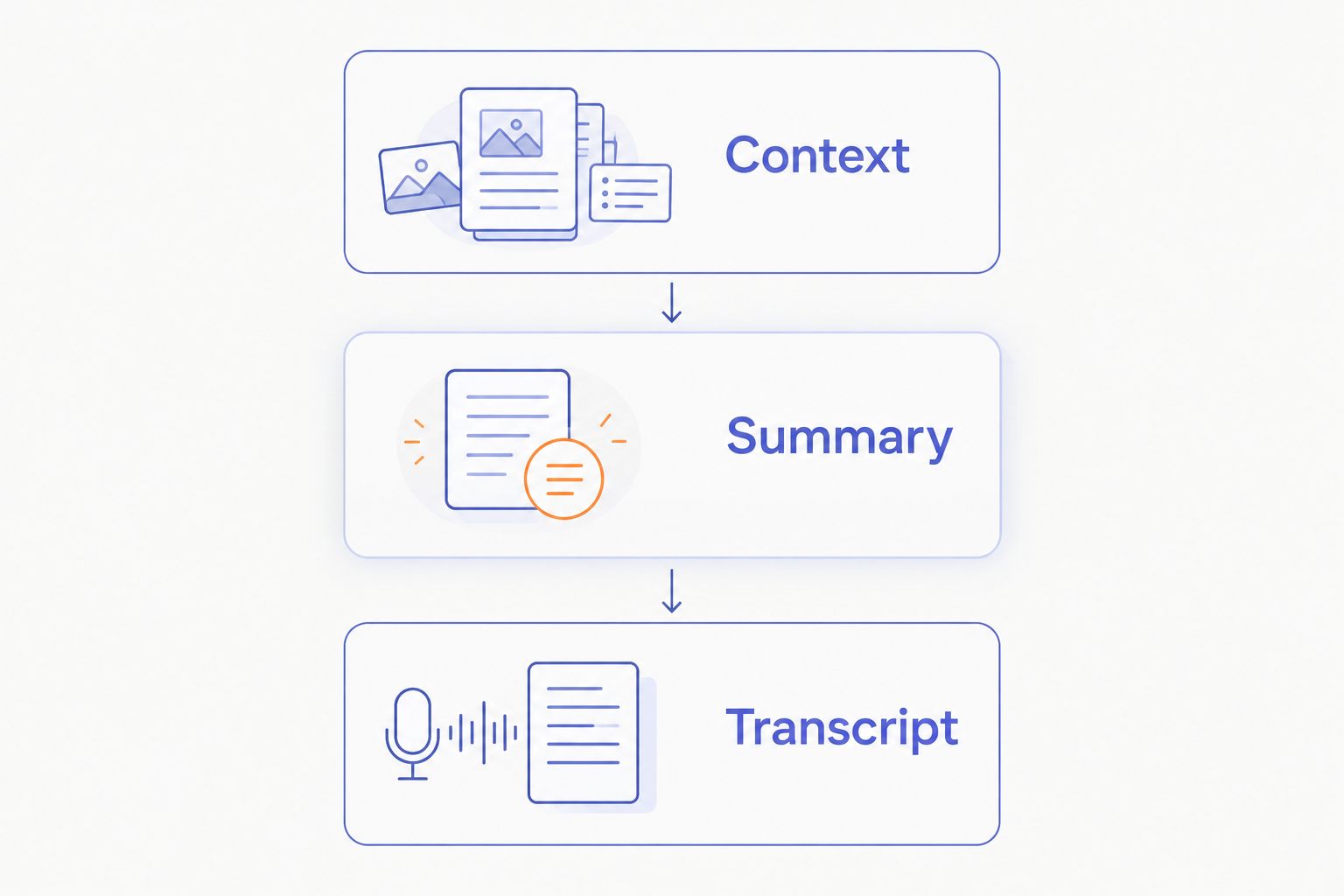
A useful note has 3 sections: Context, Summary, and Transcript. These are suggested organizational headings, not required Evernote fields or features of R1.
- Context: Explain what prompted the recording.
- Summary: State what you want to carry forward.
- Transcript: Preserve the source text separately from your interpretation.
Do not quietly rewrite the transcript into a polished account and then treat it as the original. Correct a clear transcription error when you can verify it, but identify substantive edits. The distinction matters when a conversation includes a commitment, a disputed point, or wording you intend to quote.
For your 2026 trial, create 3 test notes before relying on the routine. Use a personal idea, a reminder, and a permitted conversation excerpt. These test cases check your process; they do not measure R1 transcription accuracy.
Update the original note when text changes
A second workflow is useful when you correct a transcript or add context after the first transfer. The destination should remain the original Evernote note, not a fresh copy with a nearly identical title.
Apply a revision
- Find the original Evernote note by its topic and capture date. Confirm that it refers to the same recording before changing anything.
- Compare the revised transcript with the text already in the note. Identify whether you are correcting wording, adding an omitted passage, or changing your interpretation.
- Replace the affected transcript passage when the correction is verified. Add a brief revision note if the change affects a decision, attribution, or quotation.
- Update the summary and next action only when the corrected source changes them. Reopen the note and check that the revised text appears in the intended place.
Expected result: One note remains the reference point for that recording, with meaningful revisions made visible.
This is a manual update workflow. It does not imply that changes to an R1 transcript automatically update Evernote.
| Workflow | Best for | Benefit | Limitation |
|---|---|---|---|
| Manual transfer | Capturing a new idea in Evernote | You inspect the destination and text before relying on them | You move and review the text yourself |
| Original-note revision | Correcting an existing capture | The recording retains one reference note | You compare versions and make the correction yourself |
Use manual transfer for new captures and original-note revision for corrections. Neither workflow requires a claim that automatic R1-to-Evernote delivery exists.
Troubleshooting
You cannot copy the transcript
Return to the documented transcript-access method. Use a supported text export if one is provided; do not assume that a recording screen includes selectable text.
If no documented method gives you transferable text, this workflow stops there. An Evernote setting cannot resolve the source-access problem.
The pasted note is difficult to read
Separate the transcript into paragraphs and remove formatting that obstructs reading. Keep the words intact while changing presentation.
Check the beginning and ending again after cleanup. A neat-looking note is not useful if a passage disappeared during transfer.
The note contains an incorrect name or decision
Compare the disputed passage with the original recording if your setup provides access to it. Otherwise, confirm the detail with the speaker before treating it as settled.
Mark unresolved wording clearly. Do not let an uncertain transcript become a definite task assignment or an attributed quotation.
You have duplicate notes
Compare the topic, capture date, and transcript before consolidating anything. Keep distinct recordings separate even when they cover the same subject.
For repeated transfers of the same recording, choose one reference note and preserve any unique edits before removing a duplicate. Then use the revision workflow for subsequent corrections.
A note contains material you should not share
Check the notebook and note's sharing settings before distributing the text. Remove unrelated private material from any version intended for others.
For your 2026 process, make the privacy check part of review rather than a final rescue step. Capturing a conversation and circulating its transcript are separate decisions.
Customize your workflow
Keep the same handoff but change what you extract from it. A writer needs an idea worth returning to. A meeting participant needs a decision and an owner. A journal entry needs context without being turned into a task list.
Choose the destination based on what happens after capture. The R1 ring to Notion guide covers another destination to examine; its title is not evidence that your R1 setup supports a particular connector.
Before replacing manual transfer with automation in 2026, check the actual connection's documentation for its trigger, destination, permissions, and update behavior. Establish whether it creates a new note each time or can revise an existing note. Test those behaviors with harmless text.
Keep the manual workflow until an automated handoff is documented and tested. Fewer steps are useful only when the destination still contains the right material.
FAQ
How do I connect the R1 ring to Evernote?
Start with manual transcript transfer once your R1 setup provides readable text you can copy or export. Create an Evernote note, paste the transcript, review it, and confirm that it is in the intended notebook.
Does R1 automatically sync transcripts to Evernote?
Do not assume automatic syncing from R1's microphone and transcription description. Use automatic delivery only when the connection and its behavior are explicitly documented for your setup.
Do I need another service to move R1 notes into Evernote?
You do not need an automation service for manual transfer when you can copy the transcript text. A service should enter the workflow only after a supported source connection and Evernote destination are established.
What should I check before transferring a conversation?
Check permission to capture the conversation, the intended notebook, and the transcript's accuracy. Review sensitive passages before sharing the resulting Evernote note.
What happens when I correct an R1 transcript?
Update the original Evernote note manually unless a documented connection explicitly supports updates. Review the summary as well, because a wording correction can change the meaning of a decision.
What's the best Evernote layout for spoken ideas?
Use separate Context, Summary, and Transcript sections. This keeps the reason for the recording and your interpretation distinct from the transferred source text.
Can I set this up before I have transcript access?
You can choose a notebook and prepare a note structure, but you cannot complete the transfer without accessible transcript text. Confirm that handoff before configuring anything described as automatic syncing.
One last thing
The transcript is not the finished note. Before you leave Evernote, write one sentence that says why the capture matters.
Present-Ring-Ai positions the R1 voice-capture ring around quieter, distraction-free note-taking. Let the destination follow the same principle: one clear title, one useful summary, and source text you can return to. Do not build a complicated system around a thought that only needs a place to rest.