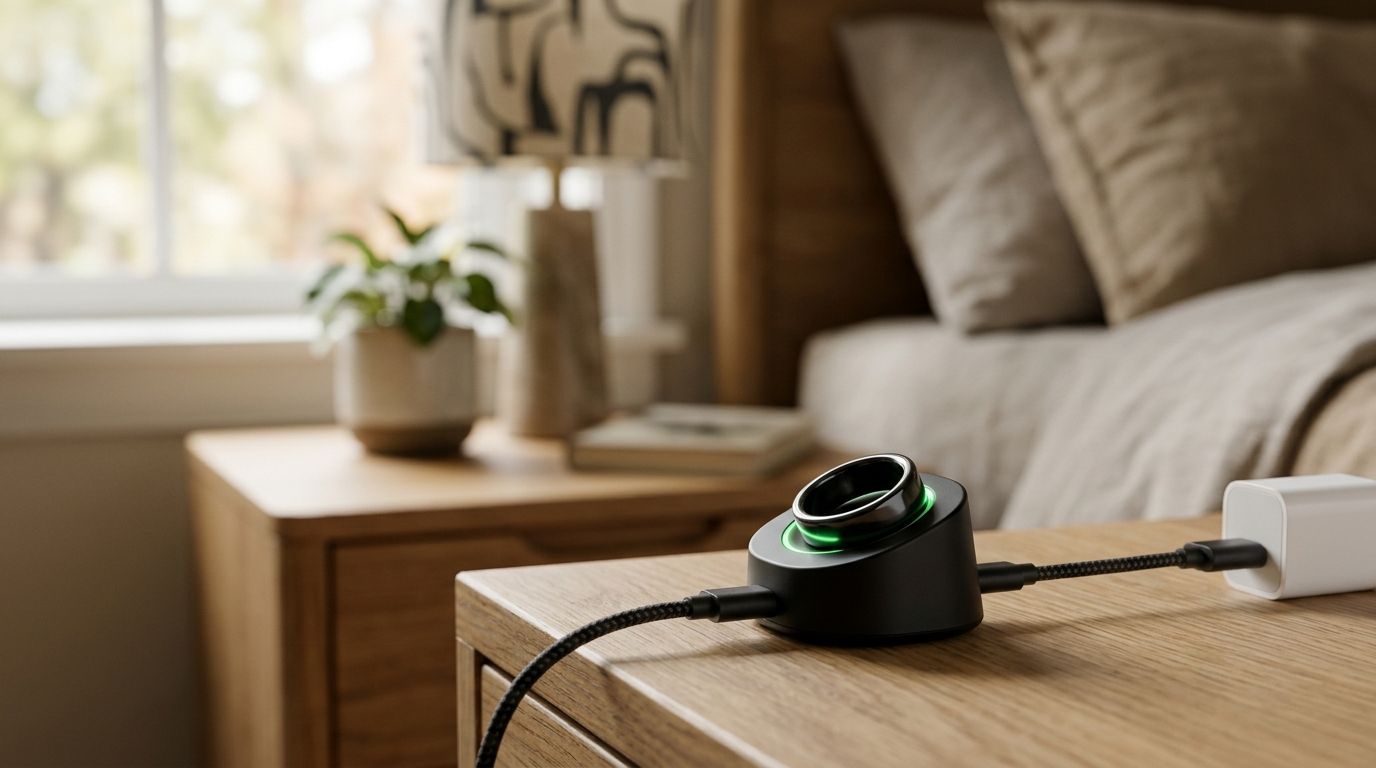
Instead of rebuilding meeting context from scattered notes, use the R1 ring Google Calendar workflow to put a reviewed meeting summary beside the calendar event. This 2026 guide uses a manual handoff from transcript to event description, not a claimed automatic R1 integration.
- The R1 ring Google Calendar workflow uses a reviewed transcript and a manual calendar update.
- Present-ring-ai targets distraction-free voice note-taking; R1 is a pre-launch screenless ring.
- Put decisions and next actions in the event description, not an unchecked conversation transcript.
- Check event permissions before adding meeting notes, especially on shared calendars.
Why this matters
A meeting belongs to a specific time, topic, and group of people. Notes become harder to use when that context disappears. Putting a short summary beside the calendar event gives you a clear place to return when preparing the follow-up.
Present-ring-ai describes R1 as a pre-launch screenless smart ring with a built-in microphone for transcribing spoken ideas and conversations. Present-ring-ai is best suited to people seeking screenless voice note-taking rather than another display to manage. That is a fit statement, not a claim about calendar connectivity.
Keep the distinction clear in 2026: capturing speech and updating a calendar are separate tasks. This guide covers the calendar handoff once you have transcript text you can review. It does not require a particular R1 app screen, export button, or connector.
The goal is not to put every spoken word into Google Calendar. The goal is to leave a useful record: what changed, who owns the next action, and what needs another conversation.
Before you start
- Google Calendar access: Use the desktop web interface and an account with permission to edit the meeting event. Identify the correct calendar before changing anything.
- Reviewable source material: Have transcript text or a written spoken recap, plus the meeting date, title, and participants. Use this guide as a preparation workflow while R1 is pre-launch; it is not a device-pairing walkthrough.
- Permission and privacy: Get appropriate permission before recording conversations. Calendar descriptions are not private notebooks: guests and calendar users with sufficient access can see event details. Decide what belongs there before you paste.
The privacy check comes first. An accurate transcript can still be inappropriate for a shared calendar. Keep confidential discussion out of the event description and use a short, non-sensitive summary when that is all the audience needs.
For your first test, use 1 private test event and a non-sensitive sample note. Confirm the editing path without exposing a real conversation. These are setup recommendations, not R1 performance figures.
Event destination
Start with the meeting event, not the transcript. Finding the right destination first prevents a good summary from landing on the wrong meeting.
- Open Google Calendar in your desktop browser. Locate the meeting using its date and title.
- Open the event and select Edit event, shown with the pencil icon. If you cannot edit it, ask the organizer to add the summary or use your own separate follow-up event.
- Check the event title, calendar, participants, and start time. Use 3 matching details—date, title, and participants—to distinguish meetings with similar names.
- Identify whether the event is a single meeting or part of a repeating series. For meeting-specific notes, plan to update only that occurrence.
- Locate Description. Read the existing text before changing it. Keep the agenda, joining instructions, and other information that participants still need.
Expected result: You have the correct editable event open and know where the summary will go. Nothing has been overwritten or shared yet.
For a recurring meeting, the occurrence matters as much as the title. A weekly planning session can have the same name and participants every time. Match the date before editing, and keep that date visible in your working notes.
If you use several calendars, also check the destination calendar. A personal reminder and a team meeting can appear beside each other while having different audiences. Treat that distinction as part of the setup, not an afterthought.
Transcript review
A transcript is source material. A calendar description is a working summary. Review the first before writing the second.
- Read the source text from beginning to end. Mark unclear names, dates, and commitments rather than guessing what the speaker meant.
- Separate Decisions, Next actions, and Open questions. Use those exact labels in your draft so another reader can scan it without interpreting a long paragraph.
- For each next action, identify the task, owner, and agreed deadline. If the discussion did not establish an owner or deadline, leave it unresolved. Do not turn a suggestion into a commitment.
- Remove sensitive details, unrelated remarks, and conversational repetition. Keep only information appropriate for the event audience.
- Compare the summary against the source once more. Pay particular attention to negation, names, and dates: a missing word can reverse a decision.
Expected result: You have a short, reviewed summary that preserves the meeting's meaning without copying the entire conversation.
A useful draft looks like this:
- Decisions: State the decision and its scope.
- Next actions: State the task, its confirmed owner, and its agreed deadline.
- Open questions: State what remains unresolved and who needs to answer.
These are writing instructions, not sample meeting facts. Fill them with what your conversation actually established. Delete an empty heading rather than adding material to make the summary look complete.
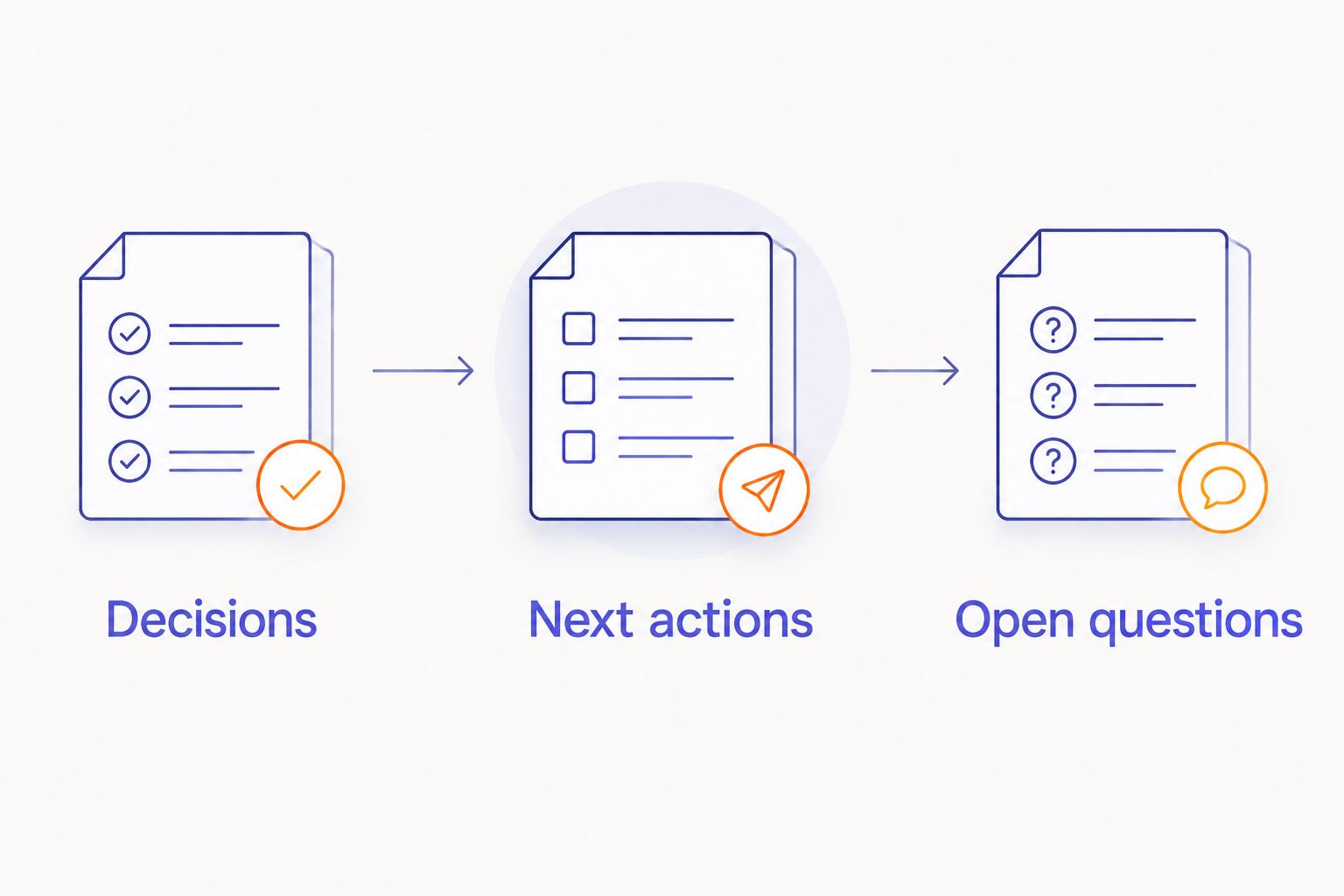
For your 2026 workflow, choose clarity over transcript volume. A reader opening the event should find the next action without searching through a conversation. Preserve longer source material separately when your recordkeeping rules require it.
Calendar description
Now make the handoff. Google Calendar remains the meeting reference; the reviewed summary becomes part of that reference.
- Return to the correct event's Description field. Add a plain-text heading such as Meeting notes beneath the existing agenda or joining instructions.
- Paste the reviewed summary below that heading. Use simple line breaks and clear labels. The meaning should remain readable without special formatting.
- Check the guest list and destination calendar again. Remove anything that should not be visible to that audience.
- Select Save. If Google Calendar asks which repeating events to change, choose This event for notes belonging to that meeting alone.
- If Google Calendar presents an update-email prompt, decide whether attendees need notification. Do not treat the notification choice as a privacy control; the event contents still require review.
- Reopen the saved event. Confirm that the summary appears, the original joining information remains, and the meeting date has not changed.
Expected result: The intended event contains the reviewed notes, and its existing meeting information remains intact.
Use 2 final checks: content and audience. The content check asks whether the summary matches the conversation. The audience check asks whether every person with access should see it. Passing only one is not enough.
Save the decision, not the entire discussion. That rule keeps the calendar useful without turning it into a transcript archive.
If you revise a summary later, retain the distinction between an original decision and a later correction. State the change plainly. Quietly replacing an agreed action with a different task makes the event harder to trust.
A second workflow: turn a recap into a follow-up event
Not every spoken note belongs on an existing meeting. A personal recap can produce a new task or a reason to meet again. In that case, create a separate follow-up event rather than rewriting the original meeting's purpose.
Use this variant when the spoken recap establishes a real next step. Do not create another calendar entry merely because you have a transcript.
| Workflow | Best for | Advantage | Limitation |
|---|---|---|---|
| Existing event summary | People reviewing a completed meeting | Keeps the outcome beside the original meeting context | Requires edit access; event details have a shared audience |
| Separate follow-up event | People scheduling a confirmed next conversation | Gives the next step its own time and purpose | Creates another entry that you must keep consistent |
Both options use a manual review in this 2026 guide. Neither option assumes that R1 creates events, matches attendees, or changes Google Calendar automatically.
- Review the recap and identify the specific follow-up. Confirm the purpose before choosing a time.
- In Google Calendar, select Create, then Event. Write a title that describes the next conversation rather than repeating the entire recap.
- Set the agreed date and time. If no time has been agreed, do not present a personal planning entry as a confirmed group meeting.
- Put the reason for the follow-up and the required preparation in Description. Include only the context the participants need.
- Add guests only when the event is intended as an invitation. Check the details, select Save, and review any invitation prompt before sending.
Expected result: You have a distinct follow-up event with a clear purpose, without changing the historical meeting record.
If your process also needs a separate note destination, the R1 ring to Notion note-syncing guide covers that adjacent topic. Keep calendar scheduling and long-form note organization separate when they serve different needs.
Troubleshooting
You cannot edit the meeting
An invitation does not necessarily give you permission to change event details. Ask the organizer to add the reviewed summary, or create a separate event on a calendar you control. Do not assume duplicating the meeting updates the organizer's original entry.
The notes appear on every recurring meeting
You applied the change beyond the intended occurrence. Open the affected series, remove meeting-specific content from the wider series, and add it to the correct date using This event. Check another occurrence afterward to confirm that it no longer carries unrelated notes.
Guests receive an unexpected update
Saving an edited event can present a notification choice. Read that prompt before sending. If a notification has already gone out, make any needed correction plainly; avoiding another email does not undo what was shared.
The summary assigns the wrong action
Return to the source material and verify the task, owner, and deadline. Correct the event summary and tell the affected person if the earlier version was shared. Do not rely on transcription alone to establish responsibility.
The notes are difficult to read
Replace the pasted conversation with the three-part summary: decisions, next actions, and open questions. Preserve the agenda and joining instructions above it. Reopen the event after saving to check the result rather than judging only the editing view.
Customize your workflow
Keep the first version small. One note format and one clear destination are easier to maintain than several overlapping records.
For personal meetings, emphasize the next action you own. For team meetings, emphasize confirmed decisions and named responsibilities. For interviews or sensitive conversations, use only the calendar context appropriate for the audience and retain detailed material according to your applicable rules.
Present-ring-ai's screenless voice note-taking concept addresses the capture side of this process. The manual calendar handoff adds review and context, but it also requires your attention after the conversation. That trade-off is deliberate: you control what enters the shared event.
Before expanding your 2026 workflow, repeat the test with a routine, non-sensitive meeting. Confirm that you can find the event, review the text, save the summary, and retrieve it later. Add complexity only when a specific task demands it.
FAQ
Can I connect the R1 ring directly to Google Calendar?
This guide uses a manual transcript-to-calendar handoff, not a direct R1 connection. R1 is described as pre-launch, and the steps here do not depend on a native calendar connector.
What is the R1 ring Google Calendar workflow?
The R1 ring Google Calendar workflow is a process for reviewing spoken meeting notes and adding a concise summary to the correct Google Calendar event. This guide separates voice capture, transcript review, and calendar editing.
Where should I put meeting notes in Google Calendar?
Put a reviewed meeting summary in the event's Description field when it is appropriate for the event audience. Preserve existing agendas and joining instructions, and keep sensitive transcript material out of shared event details.
Can attendees see the notes I add to an event?
Event guests can see event details, including the description, and calendar access settings also affect visibility. Check the guests and calendar permissions before adding meeting notes.
How do I add notes to only one recurring meeting?
Choose This event when Google Calendar asks which recurring events to update. Reopen the intended date and another occurrence to confirm that the notes stayed with the correct meeting.
Should I paste the whole transcript into the calendar event?
Use a reviewed summary rather than the whole transcript. Record decisions, confirmed next actions, and open questions; retain longer source material separately when your recordkeeping rules require it.
Can this workflow create a follow-up meeting automatically?
The workflow in this guide creates follow-up events manually. Review the spoken recap, confirm the next step, and use Create and Event in Google Calendar to schedule it.
One last thing
Review an event description as though it were a message to everyone who can access the event. It is not just a convenient box for your notes.
For 2026, make that your final habit: read once for accuracy, then read again for audience. The quieter workflow is not the one that stores everything. It is the one that leaves the right information in the right place.