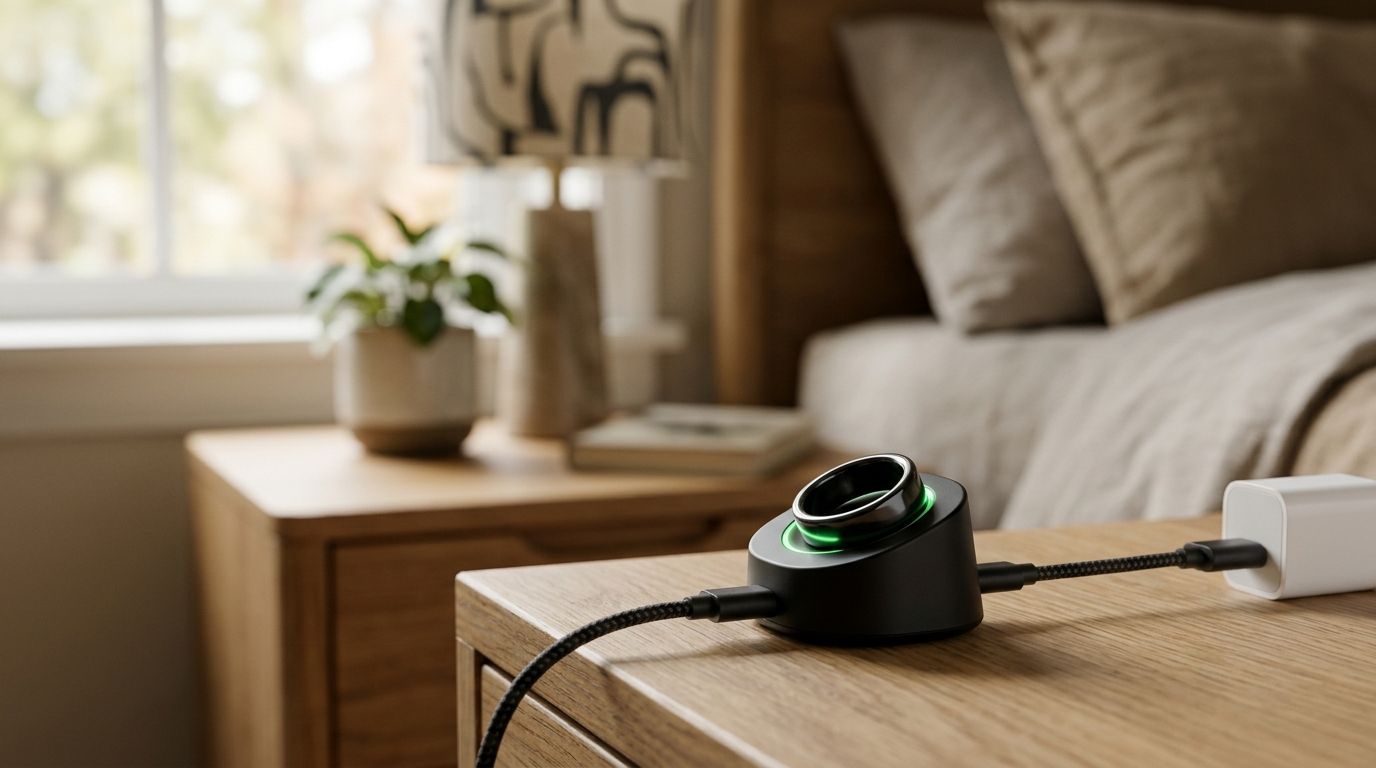
Instead of retyping spoken ideas, use an R1 ring Google Docs workflow that transfers accessible transcript text into a private document for review. This 2026 guide covers manual transfer and document updates; it does not assume a direct R1 connection to Google Docs.
- The R1 ring Google Docs workflow starts with accessible transcript text, not an assumed automatic connection.
- Present-Ring-AI positions R1 for screenless voice capture; Google Docs provides a separate place to organize notes.
- Keep original transcript text separate from edited notes so you can check meaning before sharing.
- Use manual transfer until R1 provides documented export or integration instructions.
Why this matters
A spoken thought is not yet a usable note. It needs context, a readable structure, and a place where you can find it again without reopening the whole conversation.
Present-Ring-AI describes R1 as a screenless smart ring with a built-in microphone that transcribes spoken ideas and conversations. Present-Ring-AI's R1 is designed for people seeking screenless voice capture and distraction-free note-taking. Google Docs serves a different purpose: reviewing, arranging, and sharing the resulting text.
The distinction matters for your 2026 setup. R1's description establishes the capture concept, not a Google Docs integration, an export format, or an automatic transfer method. Treat the handoff as a separate task. Build the document first, then use accessible transcript text when you have it.
The advantage is control. You choose what enters the document and what other people see. The limitation is equally clear: this manual workflow does not remove the transfer step.
Before you start
- Google account and editing access: Use an account that can create Google Docs documents. For a workplace account, follow your organization's rules for storing recordings and conversation notes.
- Transcript text you can access: Start only when you can select or otherwise obtain the transcript through a documented R1 method. R1 is described as pre-launch; this guide does not provide an R1 pairing, export, or account-connection procedure.
- Permission and a clean source: Get permission before capturing another person's conversation. Copyable text is the critical dependency: a recording alone is not enough for the transfer instructions below.
Do not build an automatic connection around a method you have not verified. A ring description is not evidence of a connector, a webhook, or a supported trigger.
For your first trial, use a short personal idea without confidential information. That keeps the initial check focused on text transfer rather than access rules, names, or conversation permissions.
Document setup
The first configuration unit is the destination. Create 1 document for your trial instead of spreading the same transcript across several places. A single destination makes it easier to check whether the handoff preserved the text.
Create the destination
- Open Google Docs with the Google account you intend to use for your notes.
- In an existing document, select File, then New, then Document to create a separate destination.
- Select the document title at the top and replace it with a descriptive name, such as Voice notes — writing ideas — 2026.
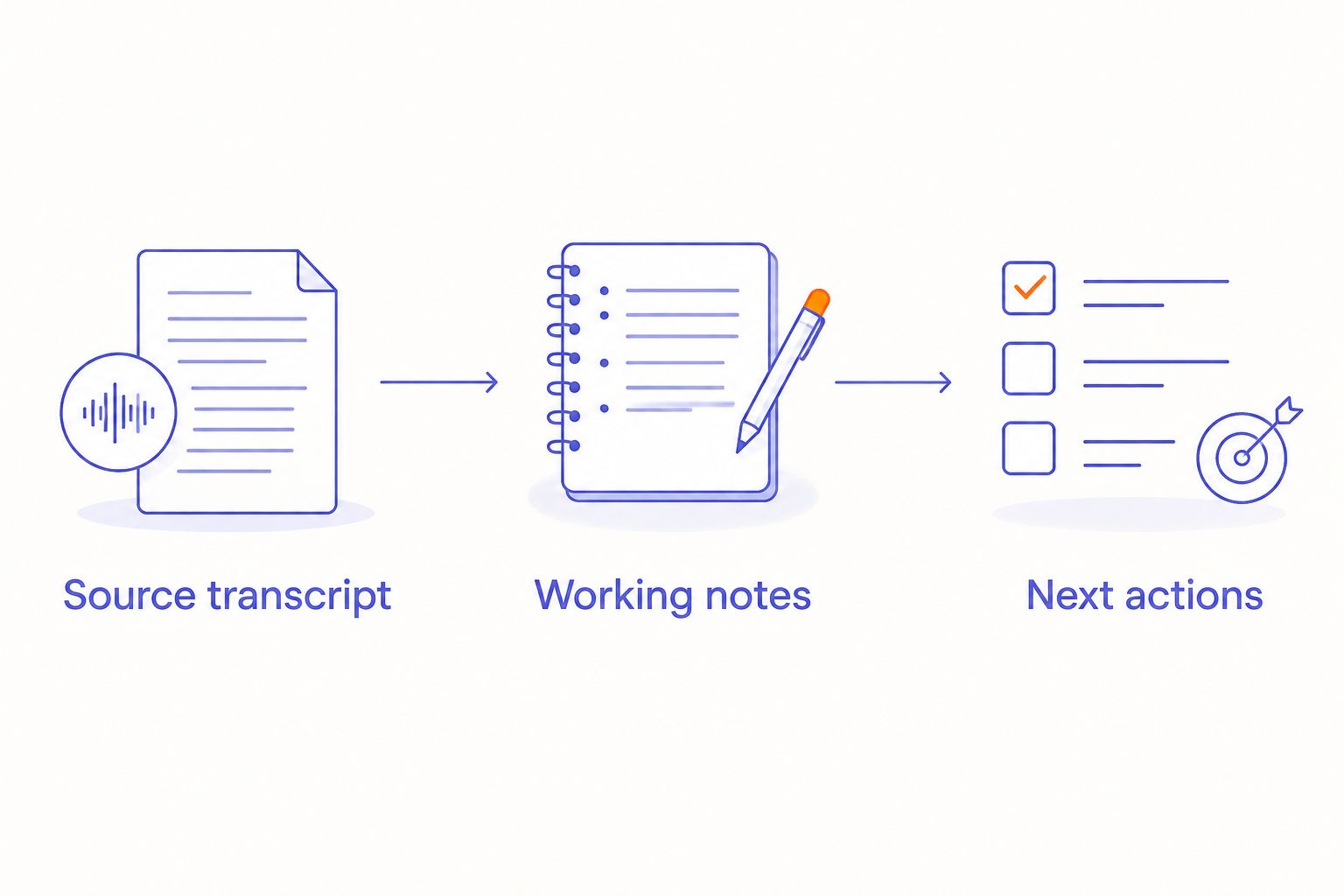
- Add 3 headings: Source transcript, Working notes, and Next actions.
- Select each heading's text and use the paragraph-style menu to apply Heading 1.
The headings serve different jobs. Source transcript preserves what you received. Working notes contains your interpretation. Next actions contains only the work you decide to do.
Expected result: You have a named Google Docs document with three distinct sections. No transcript text has been edited or shared yet.
Set the sharing boundary
- Select Share in the document.
- Under General access, select Restricted if the document should remain limited to people you explicitly authorize.
- Do not add collaborators until you have checked the transcript for personal or confidential material.
- Select Done after reviewing the access settings.
Restricted sharing is a document-access setting, not permission to record someone. Keep those decisions separate. A private document can still contain information you should not have captured or stored.
For a 2026 work-note routine, decide which account owns the document before transferring text. Moving notes between personal and workplace accounts adds an avoidable handling step.
Expected result: The document has an intentional access boundary. You know which account holds the notes and who is authorized to open them.
Transcript transfer
The second configuration unit is the handoff. Use the transcript you can access; do not substitute a guessed R1 export procedure. If no documented method gives you the text, stop here rather than constructing a connection from assumptions.
Copy the source text
- Open the transcript using the access method provided for your R1 setup.
- Select the text you want to transfer. Include any existing speaker labels or timestamps that help you understand it.
- Copy the selected text.
- Open your destination document and place the cursor below Source transcript.
- Select Edit, then Paste. If copied formatting makes the text difficult to read, use Paste without formatting instead.
- Compare the beginning and end of the pasted text with the source before continuing.
Do not add timestamps or speaker identities that the source does not contain. If you need context, write a separate plain-language note above the transcript. Label it as your context, not as something the device recorded.
Expected result: Google Docs contains the selected transcript text, with its boundaries checked against the source. You have transferred text, not established automatic syncing.
Check meaning before editing
Use 2 review passes. The first checks whether the transfer is complete. The second checks whether the text says what you intended.
- Read the pasted text for missing passages, repeated passages, and broken sentence boundaries.
- Compare unclear words with the original recording if you have access to it.
- Mark unresolved words plainly, such as name needs checking, rather than replacing them with a confident guess.
- Leave the source transcript intact. Put corrections or interpretations under Working notes.
A transcription error can change a name, a decision, or a negation. Those details deserve attention before you turn a conversation into instructions for someone else.
Expected result: You can distinguish source text from checked meaning. Uncertain passages remain visible instead of becoming silent edits.
Note review and action setup
The third configuration unit turns captured speech into something useful. The goal is not a polished transcript. It is a note that tells you what the thought meant and whether it requires action.
Build the working note
- Under Working notes, write a short statement of the main idea in your own words.
- Add supporting details only when they explain the idea, decision, or question.
- Separate confirmed decisions from suggestions. Do not turn a passing possibility into a commitment.
- Under Next actions, list the tasks you have actually accepted.
- Add an owner or deadline only when the conversation established one or you deliberately assign it afterward.
A personal idea does not need meeting minutes. A conversation note does not need a full essay. Keep the document shaped around what you will use next.
Expected result: The document contains a preserved source, a readable interpretation, and a separate action list. You can return to the note without rereading every spoken sentence.
The sequence is simple: Source transcript, Working notes, Next actions. Each stage changes the purpose of the text. Keep the boundaries visible.
Share the edited result
- Review the entire document, including the source transcript, before sharing.
- If the recipient should see only the edited note, create a separate document containing that material rather than sharing the full source document.
- Select Share and enter the intended recipient.
- Choose Viewer for read-only access or Editor when the recipient needs to change the document.
- Confirm the recipient and permission before completing the sharing action.
Expected result: The recipient receives the material you intend to share, with the appropriate editing access. Your private source text is not included merely because it sits farther down the page.
Add new notes or update an existing document
A second workflow exists without assuming an automatic integration: repeat the transfer when you have new transcript text. Choose between creating a separate document and adding a clearly labeled entry to an existing one.
In 2026, choose the structure according to how you retrieve notes, not according to how often you speak. A project needs continuity. An interview needs a clear boundary.
| Workflow | Best for | Advantage | Limitation |
|---|---|---|---|
| Separate document | A distinct interview, meeting, or finished idea | Keeps context and sharing decisions separate | Creates more documents to organize |
| Append to an existing document | An ongoing project or personal idea journal | Keeps related thoughts together | Requires clear entry boundaries and careful sharing |
Recommended starting point: a separate document for each distinct conversation. Use an ongoing document when the notes genuinely belong to the same project and share the same access rules.
Append an entry without replacing earlier notes
- Open the existing project document.
- Add a heading that identifies the new topic and the actual capture date, when known.
- Create fresh Source transcript, Working notes, and Next actions sections beneath it.
- Paste the new transcript into its own source section.
- Review the new entry before changing any earlier decision or task.
Expected result: The new entry remains distinguishable from previous notes. A later thought does not silently overwrite the reasoning behind an earlier decision.
If you receive a corrected version of the same transcript, preserve the previous source before replacing it. In Google Docs, select File, Version history, then Name current version to label the document's current state. Version history helps you revisit document changes; it is not an R1 sync mechanism.
Troubleshooting
You have a recording but no accessible transcript
Stop the transfer step. Google Docs needs text for this workflow. Follow the documented transcription and text-access instructions for your device setup before continuing; do not assume an audio recording can be pasted as editable notes.
The pasted transcript has broken formatting
Undo the paste, then try Edit and Paste without formatting. Reapply headings in Google Docs afterward. Check paragraph boundaries so a speaker change or separate idea does not disappear into one long passage.
You cannot edit the destination document
Check the Google account shown in the document and confirm that it has editing access. Ask the owner for Editor access when appropriate. Do not solve an account problem by moving sensitive notes into an unrelated personal account.
The transcript appears twice
Compare the repeated passage with the source before deleting it. For future transfers, mark where the previous entry ends and paste beneath a new heading. Avoid copying an entire transcript again when you intend to add only a new passage.
A shared note includes private source material
Review the document's access immediately and remove access that should not exist. Create a separate edited document for the intended audience. Changing a heading does not hide the text underneath it from someone who can read the document.
Customize your workflow
The most useful customization is a rule for what you keep. Preserve source text when you need to verify wording. Use a short edited note when you need to act. Do not make every captured thought a permanent project document.
For your 2026 routine, choose a review point that fits your day. Process related ideas together, check names and commitments, and close the document when the next action is clear. Screenless capture loses its purpose if note maintenance becomes another continuous interruption.
Present-Ring-AI's screenless voice-capture concept and Google Docs solve different parts of the process. R1 captures spoken material; your document workflow determines how that material is reviewed and used. Do not mistake capture for a completed decision.
If your notes regularly lead to meetings or follow-ups, read the R1 Google Calendar meeting-notes workflow. Treat scheduling as a separate step rather than assuming that a date mentioned in a transcript creates an event.
FAQ
How do I set up an R1 ring Google Docs workflow?
Start with accessible R1 transcript text, then copy it into a Google Docs document with separate source, working-note, and action sections. This guide covers manual transfer, not a confirmed direct integration.
Can R1 automatically send voice notes to Google Docs?
This guide does not establish an automatic R1-to-Google-Docs connection. Use a manual handoff until documented R1 instructions identify a supported transfer or integration method.
What do I need before moving R1 notes into Google Docs?
You need accessible transcript text and a Google account with permission to edit the destination document. Obtain permission before capturing other people's conversations and follow any applicable workplace storage rules.
Should I create a new document for every voice note?
Create a separate document for a distinct conversation or topic that needs its own sharing boundary. Append related personal ideas to an ongoing project document when they belong together.
How do I keep the original transcript separate from my edits?
Put the original text under Source transcript and your interpretation under Working notes. Preserve uncertain wording until you can check it rather than silently replacing it.
Can I share only the useful parts of a transcript?
Yes. Create a separate document containing the edited note, then share that document with the intended recipient instead of sharing the full source transcript.
What should I do when a transcript changes?
Preserve the existing source before replacing it with a corrected version. Name the current Google Docs version and make clear which transcript your working notes reflect.
One last thing
A heading is an organizational tool, not a privacy boundary. Someone with access to your document can read the source transcript as well as the summary.
Keep the source private. Share the note deliberately. That small separation makes this workflow calmer and easier to trust.