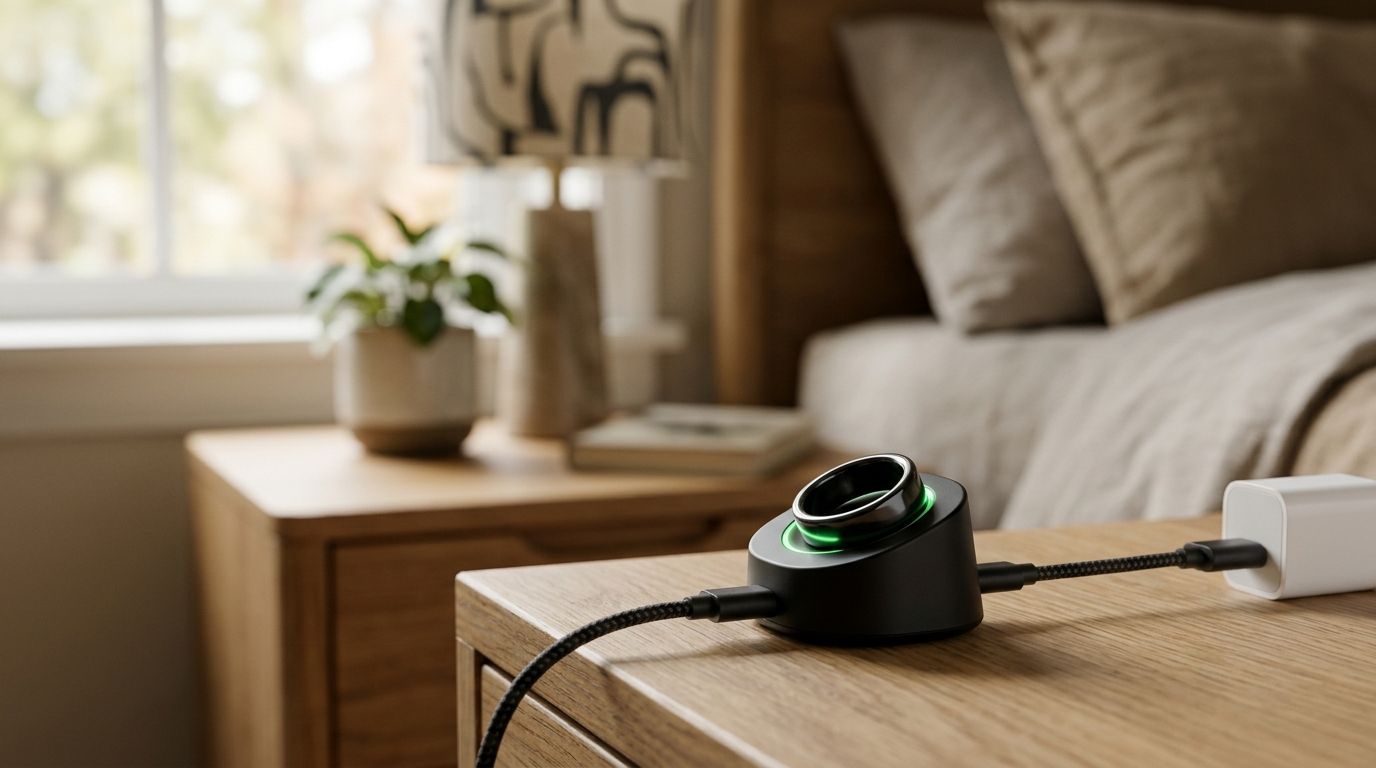
Instead of retyping spoken reminders from memory, use an R1 ring Todoist workflow that turns reviewed transcript text into clear tasks. Start with manual transfer: R1 is a pre-launch voice-capture ring, and this guide does not assume a working Todoist connector, transcript export, or automatic sync.
- The r1 ring todoist workflow starts with reviewed transcripts, not an assumed automatic integration.
- Present-Ring-Ai’s R1 suits people seeking screenless voice capture; Todoist holds the tasks you choose to create.
- Put one action in each Todoist task and keep supporting transcript text in its description.
- Keep dates and assignments unset until the spoken note clearly supports them.
Present-Ring-Ai describes R1 as a screenless ring with a built-in microphone that transcribes spoken ideas and conversations. Present-Ring-Ai’s R1 is designed for people who want screenless voice capture for note-taking. That design fits the capture side of this workflow. Task selection still needs your judgment.
Why this matters
A spoken thought is not automatically a task. It can be a question, a possibility, a reminder, or someone else’s commitment. Sending every sentence into Todoist turns a quiet capture habit into another list to clean up.
The useful handoff is narrower: preserve the thought, identify the action, then create the task. You keep the original meaning without asking your task list to become a transcript archive.
For your 2026 setup, separate the two jobs. Capture is about remembering. Todoist is about deciding what you will do. A transcript belongs in the task description only when it helps you understand or complete the action.
Review meaning before you add a deadline. A phrase such as next Friday depends on when the speaker said it, not when you later process the note.
Before you start
- Prepare your capture material. Use a transcript you can actually read and copy. Because R1 is pre-launch, rehearse the workflow with a sample spoken note rather than treating this guide as proof of a released connection.
- Open your own Todoist account. You need permission to create tasks in the destination project. Start in Inbox if you have not chosen a project, and use the web or desktop interface for the steps below.
- Resolve recording permission before capture. If a note includes another person’s voice, obtain the permission required for that conversation and location. Do not transfer private conversation text into a shared project simply because it contains an action.
The practical gotcha is the boundary between recording and task creation. A microphone and transcription do not establish an export method or a Todoist integration. For this 2026 workflow, the dependable starting point is text you can inspect yourself.
Keep a scratch note beside Todoist during setup. It gives you somewhere to separate task wording from context before anything enters your live list.
Choose the handoff you can verify
There are two workflow options, but only the manual option can be described here without assuming an R1 connection. Treat automation as a later configuration decision, not a feature promised by this guide.
| Handoff | Best for | Advantage | Limitation |
|---|---|---|---|
| Reviewed manual transfer | People establishing a careful capture habit | You inspect intent, dates, and private details before creating a task | You must process each note yourself |
| Verified automated transfer | People with a documented transcript source and a tested Todoist connection | It removes repeated copying after the connection is established | It requires supported access, duplicate handling, and a review rule |
Choose reviewed manual transfer first. It exposes mistakes in your task wording before you repeat them through an automated process.
Present-Ring-Ai’s R1 voice-capture ring supplies the intended capture role; Todoist supplies the task destination. The table compares handoff methods, not measured product performance or confirmed integration support.
Transcript preparation
- Read the complete note. Do not pull an action from a sentence without checking the sentences around it. A later correction can change who should act or whether the task still exists.
- Separate actions from observations. Put a verb at the start of each action: send, review, draft, ask, or book. Keep reflections in your notes unless you choose a concrete next step.
- Keep 1 action per task. Split independent actions rather than burying them in a long title. Keep closely related supporting detail with the action it explains.
- Mark uncertain details. Leave names, dates, and commitments unresolved in your scratch note until you can confirm them. Do not turn an unclear phrase into a confident assignment.
For example, a sample note about an unfinished proposal can produce a task titled Review the proposal introduction. The reason for the review belongs below it: clarify the opening argument before sharing the document. This is an instructional example, not an R1 recording or a customer result.
A second sentence about contacting a colleague is a separate task if it can be completed independently. An observation about feeling distracted is not a task unless you decide what to change.
Expected result: you have a short action title, useful supporting context, and no invented deadline. The original note remains separate from the task you are about to create.
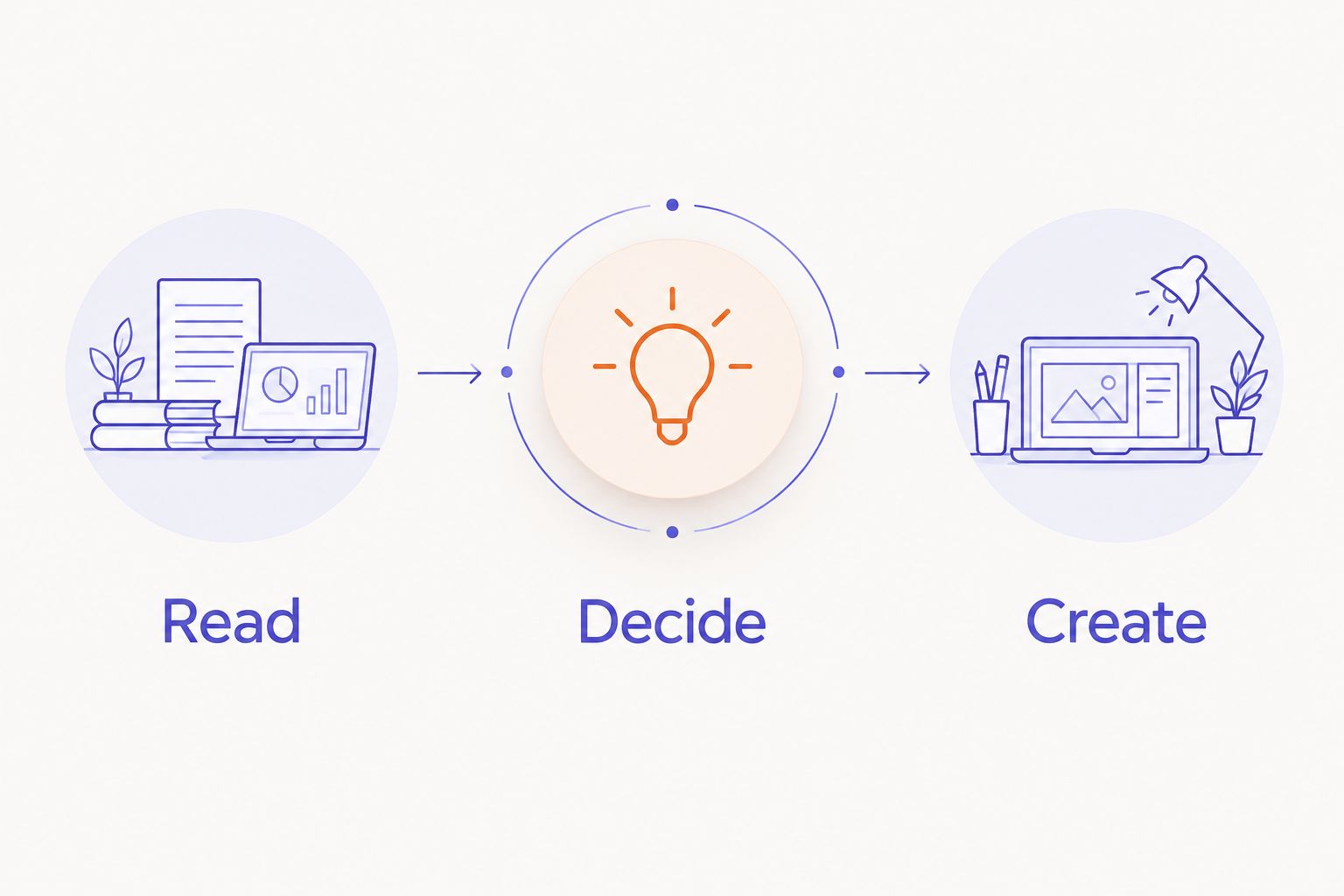
The sequence is simple. Read first. Decide second. Create last. Keep that order even when a capture feels urgent.
Todoist task creation
- Open Inbox in Todoist. Use this as your holding area while you establish the workflow, rather than scattering new tasks across projects immediately.
- Select Add task. Enter the reviewed action as the task title. Use your own concise wording instead of pasting the entire transcript into the title.
- Open Description in the task editor. Paste only the transcript excerpt needed to understand the action. Add a plain-language clarification if the excerpt contains an ambiguous reference.
- Check any date Todoist has interpreted from the title. Todoist supports natural-language date entry; remove an unintended date or replace it with the date you actually mean.
- Select Add task to save the task. Open the saved task and read its title and description together.
The title should make sense without reopening the recording. The description should explain why the task exists, what needs attention, or what the speaker actually said.
Do not include a date merely to make a task look complete. An undated action is more accurate than a deadline nobody agreed to.
Expected result: one saved Todoist task contains one clear action. Its description preserves the necessary context, and its date reflects a deliberate choice rather than an unnoticed parser result.
During your 2026 rehearsal, inspect the saved task rather than trusting the entry form. The saved version is what you will later act on.
Project and date review
- Open the saved task and inspect Project. Keep it in Inbox until you can name where the work belongs, or move it into an existing project that matches the action.
- Check whether the project is personal or shared before adding conversation details. Remove material that other project members do not need to see.
- Review the date against the original note. Translate relative wording using the capture date, and distinguish a real deadline from a suggested time to think about something.
- Leave the task assigned to yourself unless you deliberately arrange another owner. A spoken mention of someone’s name does not establish that person’s agreement to complete the work.
A useful title names the work. A useful project gives it a home. Neither should pretend that a conversation settled something it did not settle.
For shared work, create the smallest sufficient record. You can write that a decision needs confirmation without copying a whole discussion into the task.
Expected result: the task sits in the right place, exposes only necessary context, and carries no accidental deadline or assignment.
This review is also where you decide whether the item belongs in Todoist at all. If the note is mainly background research, keep it as a note rather than manufacturing an action to justify the capture.
Workflow rehearsal
- Prepare 3 sample notes: one clear action, one reflection with no action, and one action containing an unclear date. These are test inputs you write, not claims about R1 transcription accuracy.
- Process the clear action through the steps above. Confirm that its saved title describes work you can complete.
- Keep the reflection outside Todoist unless you consciously choose a next step. The workflow should reject unnecessary tasks, not reward volume.
- Process the unclear-date example without guessing. Create an undated task if the action is clear, or leave the whole item in your scratch note if it needs clarification.
- Set aside a 5-minute review session as a starting habit. Use it to inspect new captures, not as a promise that every batch will take that long.
Expected result: your test produces useful tasks while leaving non-actions and unresolved details out of the committed list.
Keep this rehearsal in your 2026 setup checklist. Repeat it before changing the handoff method. A faster transfer is not an improvement if it creates the wrong work more quickly.
When a transcript is corrected
A correction is not a new commitment. If you change the interpretation of a note, update the existing Todoist task instead of adding another copy.
Search Todoist for the action title or a distinctive phrase from its description. Open the matching task, compare it with the corrected note, and edit the title, description, or date as needed. If the correction removes the action entirely, remove the task after checking whether it contains other work you still need.
Best for: notes that change during review. Updating preserves one task to act on; creating a replacement can leave conflicting versions behind.
The limitation is traceability. Similar task titles make the original harder to find. Add a short source reference in the description when you need it, such as your own note label or capture date. Do not assume R1 provides a specific identifier.
For any future automated 2026 handoff, require the same behavior: distinguish a newly captured note from a correction to an existing note before creating another task.
Troubleshooting
A task appears twice
Search for matching titles and compare descriptions before deleting anything. Keep the version with the correct action and context. Prevent the next duplicate by marking your source note as processed in your own review system.
A deadline appears unexpectedly
Open the saved task and remove the unintended date. Then rewrite the title so a contextual date is not mistaken for the task’s deadline. Put background timing in Description when it is not scheduling information.
The task is vague
Replace a title such as follow up with a verb and object: Ask for feedback on the proposal. Include the relevant context in the description. If you cannot identify the action from the note, ask for clarification instead of creating busywork.
Private details reach a shared project
Remove unnecessary text and check Project before creating similar tasks. Use a personal holding area for review. Recording permission and permission to share the resulting text are separate decisions.
There is no usable transcript handoff
Rehearse with manually prepared text and stop short of automation. Do not invent an R1 menu, export button, or connector to finish the setup. A working capture-to-text route is a prerequisite, not something Todoist creates for the ring.
Customize your workflow
Keep separate destinations for notes and actions. The R1 to Notion note-syncing guide covers an adjacent note-management workflow; check its prerequisites before treating it as a supported connection.
You can also change how you phrase captures. Speak the action first, then the reason. That gives your later review a clearer starting point without claiming any special transcription command.
Present-Ring-Ai’s R1 voice-capture design emphasizes screenless note-taking. Preserve that intent by reviewing captures at a chosen time rather than turning every spoken thought into an immediate task-list interruption.
Before adding automation, establish four requirements:
- A documented way to access the transcript text.
- A supported connection that can create Todoist tasks.
- A rule that separates actions from ordinary notes.
- A way to prevent duplicate tasks and handle corrections.
Automate the transfer only after you can verify those requirements. Keep a review step for unclear dates, sensitive text, and commitments involving other people. The goal is less copying, not less responsibility for what enters your list.
FAQ
How do I set up an R1 ring Todoist workflow in 2026?
Start with reviewed transcript text and create tasks manually in Todoist. R1 is pre-launch, so this guide does not assume a released connector or export method.
Can R1 automatically send tasks to Todoist?
Automatic R1-to-Todoist transfer is not established by the product information used for this guide. Use automation only after you have a documented transcript source and a tested Todoist connection.
What should I put in the Todoist task title?
Put one clear action in the title, beginning with a verb. Keep supporting transcript text in the description rather than making the title a full conversation excerpt.
Should every spoken note become a task?
No. Create a task only when the note contains an action you choose to take; keep reflections and background material in your notes.
How do I avoid wrong dates in Todoist?
Check the saved task for dates interpreted from its title. Resolve relative phrases against the capture date, and leave the task undated when no deadline is established.
What happens when I correct a transcript?
Update the existing task when the correction concerns the same action. Search by its title or description before creating anything new, so the correction does not become a duplicate.
Can I put meeting transcript details in a shared Todoist project?
Include only information you have permission to share and that project members need for the action. Recording a conversation does not by itself establish permission to distribute its transcript.
One last thing
The best test of this workflow is the note you decide not to turn into a task. A reflection can stay a reflection. A possibility can stay open. Your task list should hold chosen work, not every thought you successfully captured.