Yes. You can use an AI note taker ring to dictate the words of an email when it supports voice transcription, but capturing a draft is different from addressing, formatting, and sending a message; keep those final steps in your email app unless the device explicitly supports them.
- Can you use an AI note taker ring for dictating emails? Yes, for spoken drafts; sending requires separate support.
- Present-Ring-Ai's R1 fits screenless voice capture, not an assumed connection to your inbox.
- Dictate the purpose, message, and requested action. Review names, dates, and commitments before sending.
- Keep sensitive details out of spoken drafts until you understand how the recording and transcript are handled.
Can you use an AI note taker ring for dictating emails?
Yes for drafting. Do not assume it can send. A microphone captures your speech. Transcription turns that speech into text. An email still needs a recipient, a subject, a reviewed message, and your decision to send it.
Present-Ring-Ai describes R1 as a screenless smart ring with a built-in microphone that transcribes spoken ideas and conversations for note-taking. That supports its role as a place to capture an email idea. It does not establish direct email integration.
Use this distinction when evaluating a ring in 2026:
| Approach | Best for | Main benefit | Main limitation |
|---|---|---|---|
| Ring transcription | Capturing a draft away from a screen | Speak the thought without composing visually | Text still needs review and a supported route into email |
| Dictation inside an email app | Composing where supported dictation is enabled | Work directly in the message field | Requires a compatible dictation setup |
| Typed composition | Exact wording and sensitive details | Inspect the message as you write | Requires your attention on a screen or keyboard |
These are different workflows, not interchangeable features. Choose the one that removes the interruption you actually face.
Why this matters
An email often begins before you open your inbox. You remember a question during a walk. You think of a clearer response after leaving your desk. Voice capture gives that thought somewhere to go.
The useful boundary is simple: capture now, decide later. A screenless device belongs at the capture stage; your email app remains the place to check the recipient and approve the message.
For your 2026 buying decision, separate remembering what you want to say from controlling your inbox. The first is a note-taking task. The second requires email-specific support.
How to turn a spoken note into an email draft
Use this five-step process as an editorial workflow, not as a claim about a particular ring's controls or integrations. The capture and transfer steps depend on the device you choose.
1. State the purpose
Begin with what the email needs to accomplish. Say whether you are asking a question, confirming a decision, sharing an update, or requesting a response.
Give each capture 1 purpose. If you remember another unrelated message, make a separate note rather than mixing recipients and requests in the same draft.
2. Speak the message
Say the substance before worrying about the greeting or sign-off. Include enough context for the eventual reader to understand why you are writing.
A useful spoken outline names the situation, explains your point, and states the next action. These are instructions for your own drafting habit, not voice commands that a ring must recognize.
3. Review the transcript
Read the text before treating it as correspondence. Check whether it says what you meant, including any correction you made halfway through speaking.
Give particular attention to names, dates, negations, and promises. A sentence that drops the word not can reverse your meaning even when the rest looks correct.
4. Prepare the email
Move the reviewed wording into your email app using whatever method the device supports. Then add the recipient, subject, greeting, and any necessary attachment.
Do not assume that speaking an address selects a contact or that mentioning a file attaches it. Verify those actions inside the email app.
5. Approve the send
Read the finished message in context. Check the recipient list, the requested action, and any statement that commits you to doing something.
Keep sending as a deliberate decision. A useful spoken draft is not permission to deliver an unfinished thought.
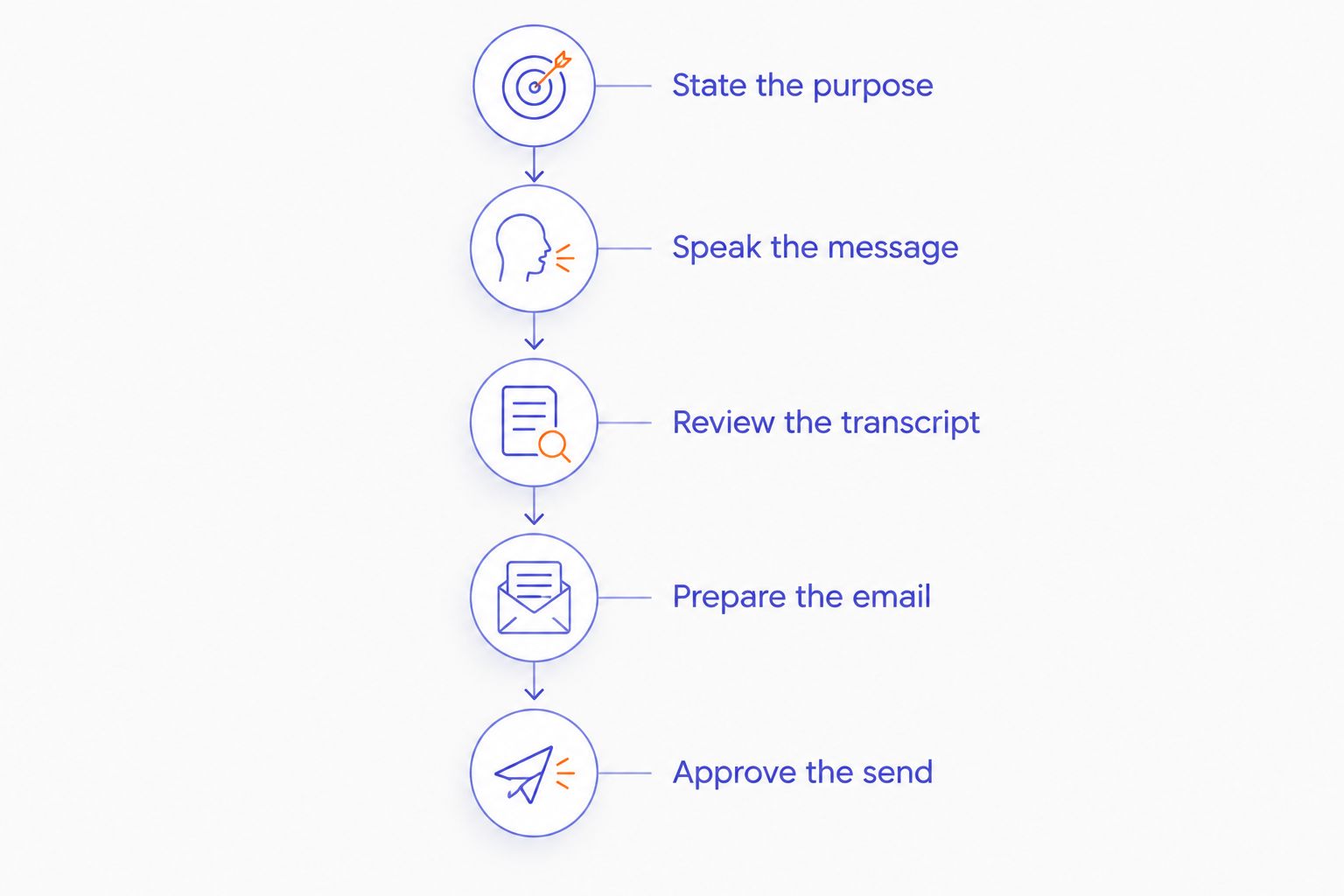
The process keeps composition and delivery apart. You can speak naturally during capture without treating every hesitation or unfinished sentence as something another person should receive.
Dictating a complete draft
Best for: a message whose purpose and wording are already clear. Speak the message in the order you want the reader to encounter it. Begin with the reason for writing, add the necessary detail, and finish with the request.
The benefit is continuity. You preserve the shape of the message while the thought is clear. The limitation is that spoken language often contains repetition, detours, and unfinished phrases that need editing.
Do not try to solve every punctuation question aloud. Unless the device documents punctuation commands, assume you will handle formatting during review.
Capturing an outline instead
Best for: a message that still needs judgment. Capture the point you want to make, the supporting detail, and the question you need answered. Leave the polished wording for later.
An outline preserves intent without pretending the email is finished. Its limitation is straightforward: you still have to compose the final message.
For difficult feedback, negotiations, or emotional replies, prefer an outline. Record what you need to address, then choose your words when you can read them calmly.
Why the email-dictation workflow varies
The right setup in 2026 depends on the whole path from speech to reviewed text, not simply the presence of a microphone. Check these factors before making a ring part of your routine:
- Capture method. Learn how recording starts and stops. Do not assume that wearing a ring means every spoken thought becomes a note.
- Transcript access. Confirm where you can read the text and how you can move it into an email. Capture is only useful if you can reach the result.
- Email support. Distinguish general transcription from a documented connection to an email app. Neither capability establishes the other.
- Speech content. Unusual names, specialist terms, and spoken corrections deserve focused review. Judge the transcript against the intended message.
- Privacy requirements. Check how recordings and transcripts are stored, accessed, and deleted before speaking confidential material.
- Review needs. A quick personal update and a message containing contractual commitments require different levels of care. Keep your approval step proportionate to the consequences.
Treat these as acceptance criteria. A feature list does not replace checking the path you intend to use.
Where R1 fits
Present-Ring-Ai's R1 is best for people seeking screenless voice capture for spoken ideas and notes. Its described role is to transcribe speech through a microphone built into a ring.
For email drafting, that is a focused role: capture what you want to say without making the inbox your first stop. The limitation is equally important. The described note-taking capability does not establish recipient selection, attachment handling, inbox access, or automatic sending.
Evaluate Present-Ring-Ai's screenless voice-capture ring on that narrower promise. If your requirement is direct control of email, ask for explicit documentation of that workflow rather than treating transcription as proof.
What should you check before relying on a ring for email?
Use 3 checks before making voice capture part of your correspondence routine: inspect the wording, confirm transcript access, and review data handling. Make these checks with ordinary, non-sensitive material first.
A useful practice draft contains the kinds of words you actually use. Include a name, a date, a correction, and a clear request. Then inspect the result yourself.
This is a personal acceptance check, not a transcription benchmark. You are deciding whether the process fits your work, not assigning a universal accuracy score.
In 2026, judge the complete task. A readable transcript is helpful, but you also need a dependable way to retrieve it, revise it, and place it into the right message.
Can a ring send an email automatically?
Automatic sending requires explicit email support; transcription alone does not establish it. A device that produces text is not necessarily authorized to access your mailbox or send on your behalf.
If a device offers an email connection, inspect what it actually does. Creating a draft, choosing a recipient, and sending a message are separate actions with different consequences.
For correspondence that matters, retain approval before sending. Convenience should not remove your chance to catch a wrong recipient or an unintended commitment.
Can you dictate confidential work emails?
Confidential email dictation requires an acceptable recording environment and data-handling process. Do not speak sensitive material into a wearable simply because it has no screen.
Consider who can hear you as well as where the transcript goes. Workplace rules, client obligations, and the device's documented handling of recordings all belong in that decision.
When those conditions are unsuitable, type the sensitive details in an approved system. You can still capture a neutral reminder to write the email without recording its confidential contents.
How do you review a dictated email without losing the benefit?
Use 2 passes: meaning first, delivery second. In the first pass, check whether the transcript preserves your intended statement, request, and tone.
In the second pass, check the recipient, subject, attachments, and final wording inside the email app. Separating these checks gives each a clear purpose.
Do not turn review into a complete rewrite by default. Keep the parts that already say what you mean. Remove repetition, resolve ambiguous references, and make the next action clear.
FAQ
Can you use an AI note taker ring for dictating emails in 2026?
Yes, you can use an AI note taker ring to capture spoken email drafts when it supports transcription. Review the text and complete the message in your email app unless the device explicitly supports those actions.
Will a voice note ring automatically send my email?
Voice transcription does not establish automatic email sending. Sending requires explicit email support and the necessary authorization, so verify that capability separately.
Is a ring better than dictating directly into my email app?
A ring fits capturing an idea away from a screen; dictation inside an email app fits composing directly in the message field when supported. Choose based on whether your main task is remembering the thought or finishing the email.
Can I dictate an email address and trust it without checking?
Check the address before sending. A transcribed address is not proof that the correct recipient has been selected in your email app.
Can I use a ring to draft confidential client emails?
Use a ring for confidential material only when the recording environment and documented data handling meet your obligations. Otherwise, capture a neutral reminder and write the sensitive details in an approved system.
What should I say when recording an email idea?
State the purpose, the necessary context, and the action you want the recipient to take. Treat those as drafting prompts, not as guaranteed commands for the device.
Do I still need to proofread a dictated email?
Yes, proofread the transcript and the finished email before sending. Check names, dates, negations, commitments, recipients, and attachments rather than reviewing spelling alone.
One last thing
You do not have to dictate the whole email. Capture the sentence you are most likely to forget: the question, the decision, or the reason you need to reply.
For your 2026 routine, start there. Let voice capture hold the thought. Leave the final words, and the decision to send them, with you.